


The screenwriting software behind film and television, now part of Cast & Crew
Final Draft, based in Burbank, California, makes screenwriting software used across film and television. Since 2016 it has been a Cast & Crew company.
User guides for every version, on Mac and Windows, with videos beside them
Final Draft's documentation portal gathers the user guides for the program. The guides cover each version for both Mac and Windows, and the portal's top menu also links to API documentation, a knowledge base, and support.
Quick start videos sit beside the manuals, so a new user can read a guide or watch a feature before opening it.
A portal that matches each reader to their version, platform, and way of learning
The right manual for each version and platform
The entry page lists a manual for each of four Final Draft versions, 9 through 12, in a Mac and a Windows edition. In the portal, the version 12 guides for Windows and Mac are separate publications, each with its own table of contents, and each guide's title says which one it is.
Reading or watching, the reader's choice
Two Quick Start videos ("Quick Start Guide: Final Draft 12" and "Beat Board") sit next to the manual list, and the guide has a Tutorial Videos topic near the top of its table of contents. A reader who would rather see a feature than read about it has a way in.
A guide organized the way the program is
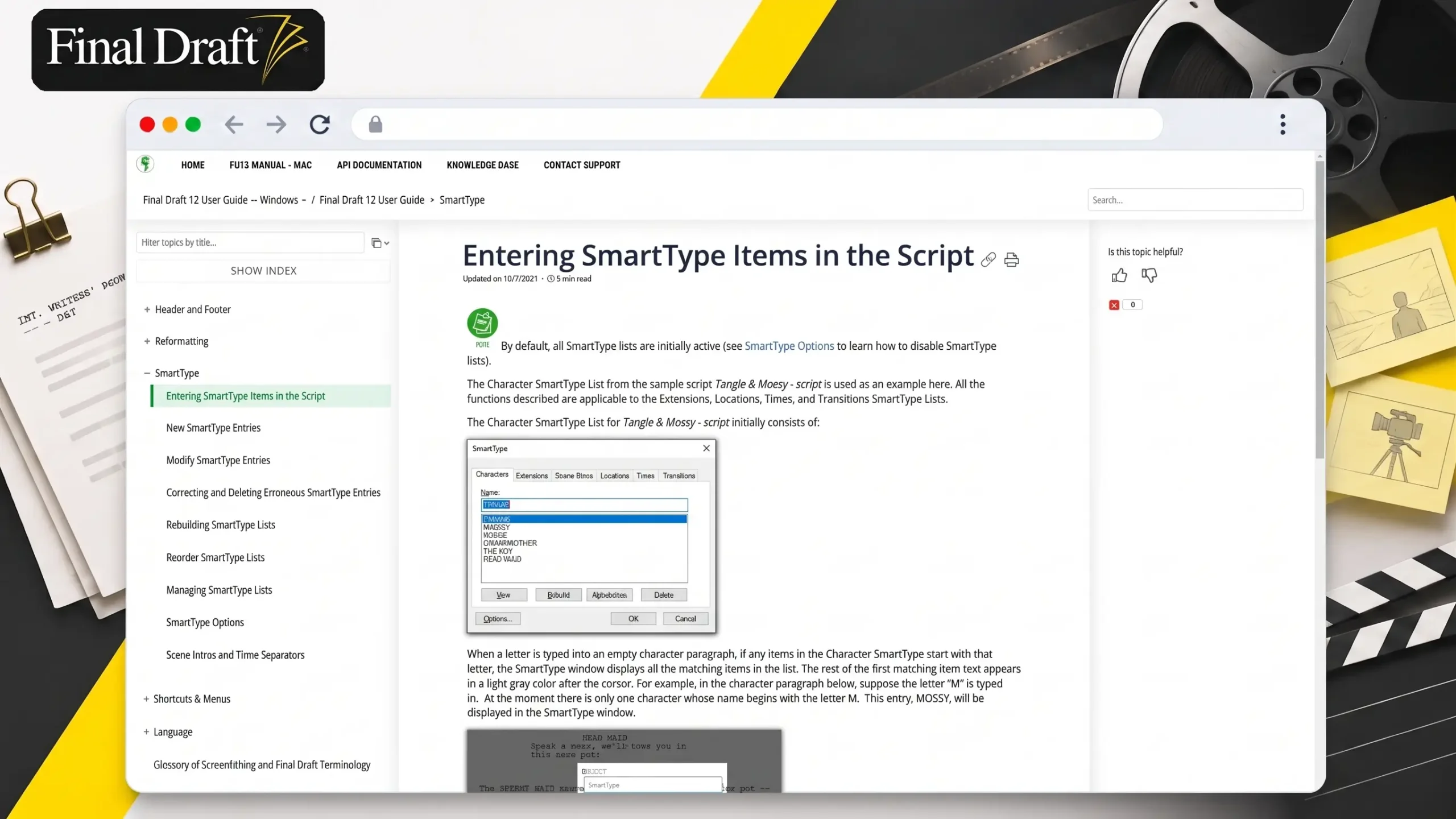
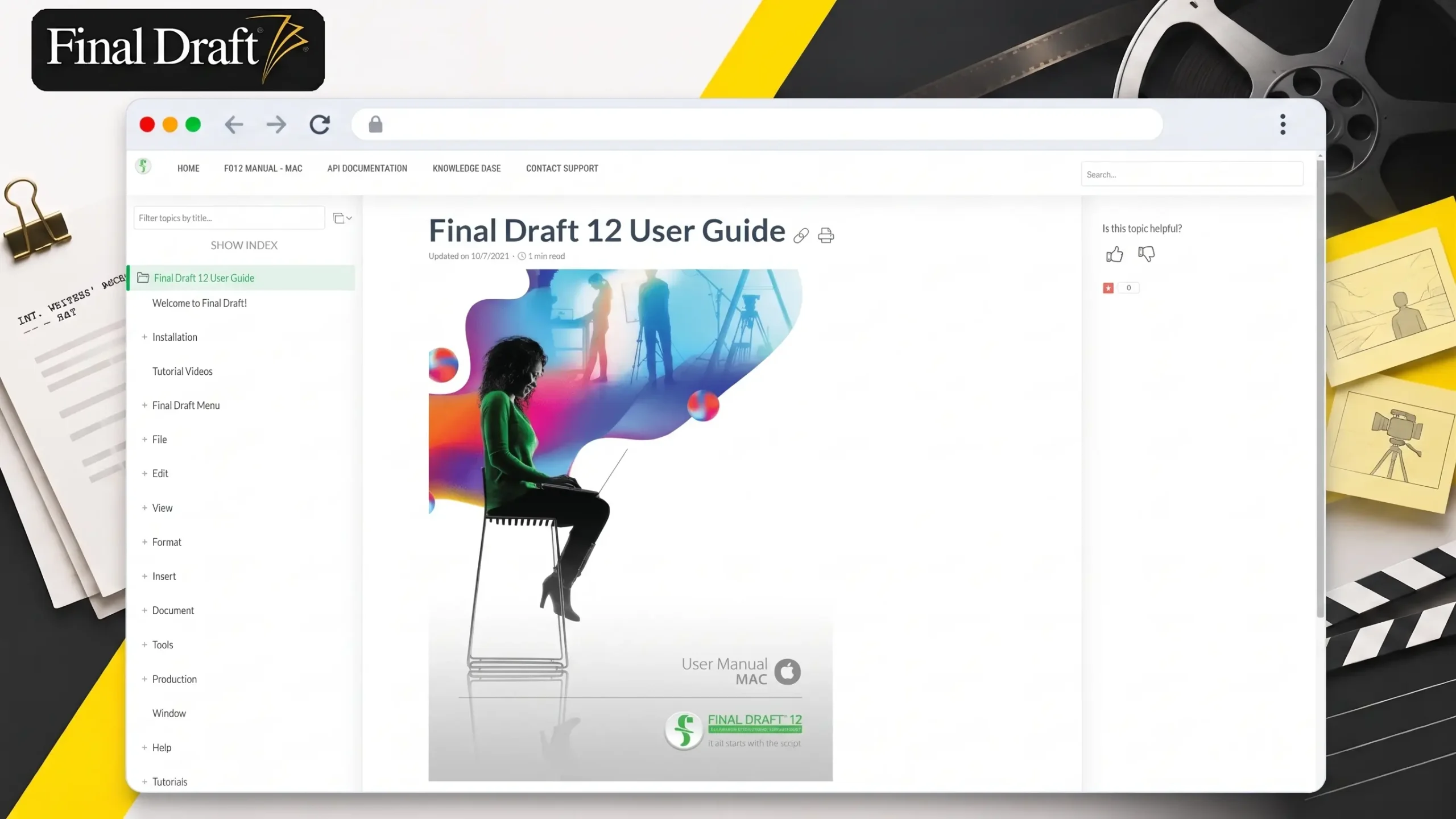
The Windows guide follows the program's ribbons (File, Edit, View) and the Mac guide follows its menu bar (File, Edit, View, Format). A reader who knows where a command lives in the program finds it in the same place in the guide. An Index button and a filter-by-title box sit above the table of contents for readers who search by a word.
Advice, warnings, and notes that look different
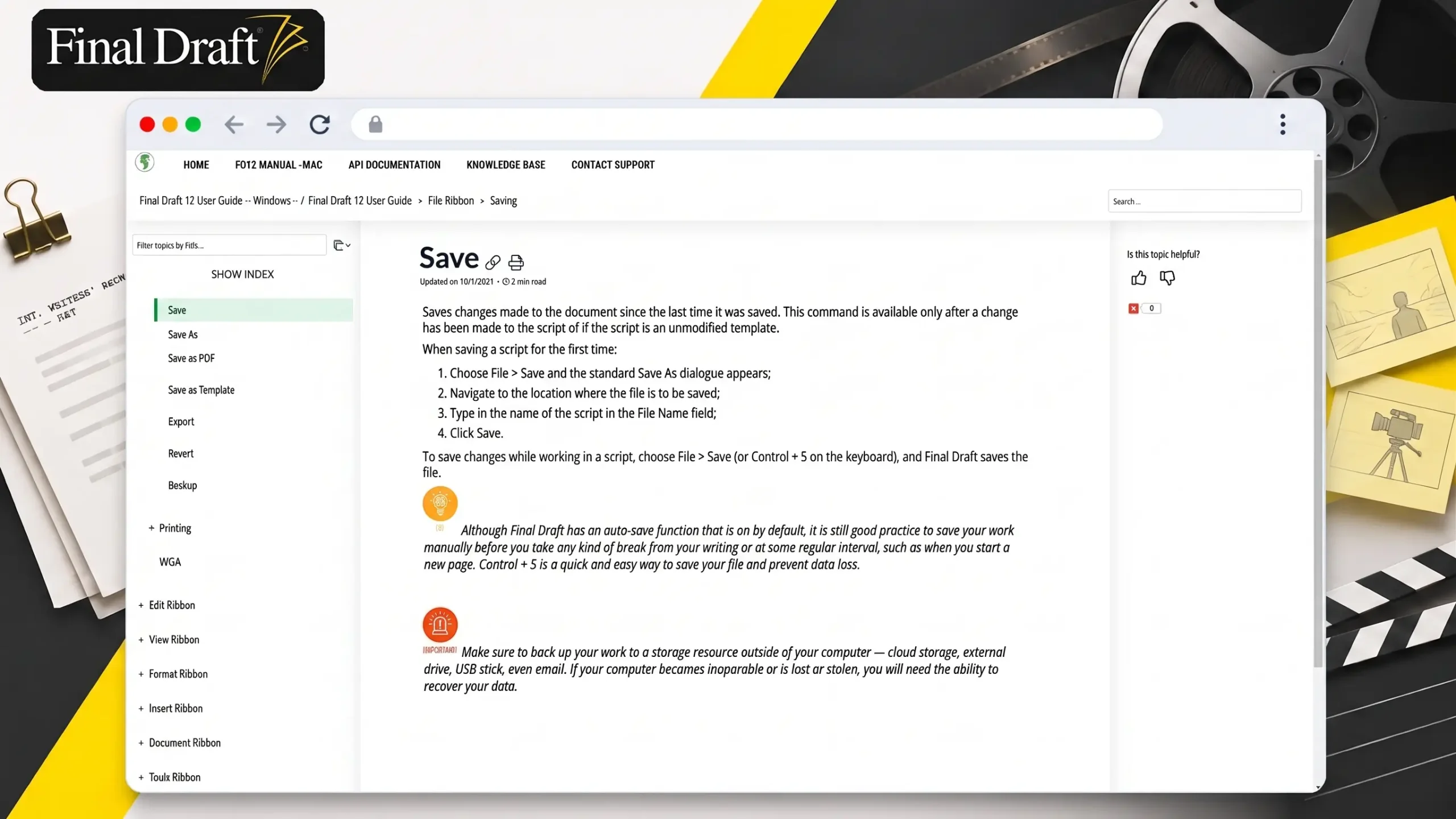
Callouts come in three kinds, each with its own icon and label: Tip, Important, and Note. In the Save topic, a Tip suggests saving manually despite autosave, and an Important box says to back up the work outside the computer. ClickHelp doesn't prescribe how callouts look, so each kind here has its own icon.
A model for software shipped in several editions and versions
Software that exists in Mac and Windows editions, across several versions, can follow this portal's lead: one guide per edition, a table of contents that mirrors the program's own interface, videos beside the manuals, and tips and warnings that are easy to tell apart.— ClickHelp team
Ask us for examples like yours
Shipping your software for several platforms and versions? We'll show you portals that solve the same problem — and how yours could look in ClickHelp.
