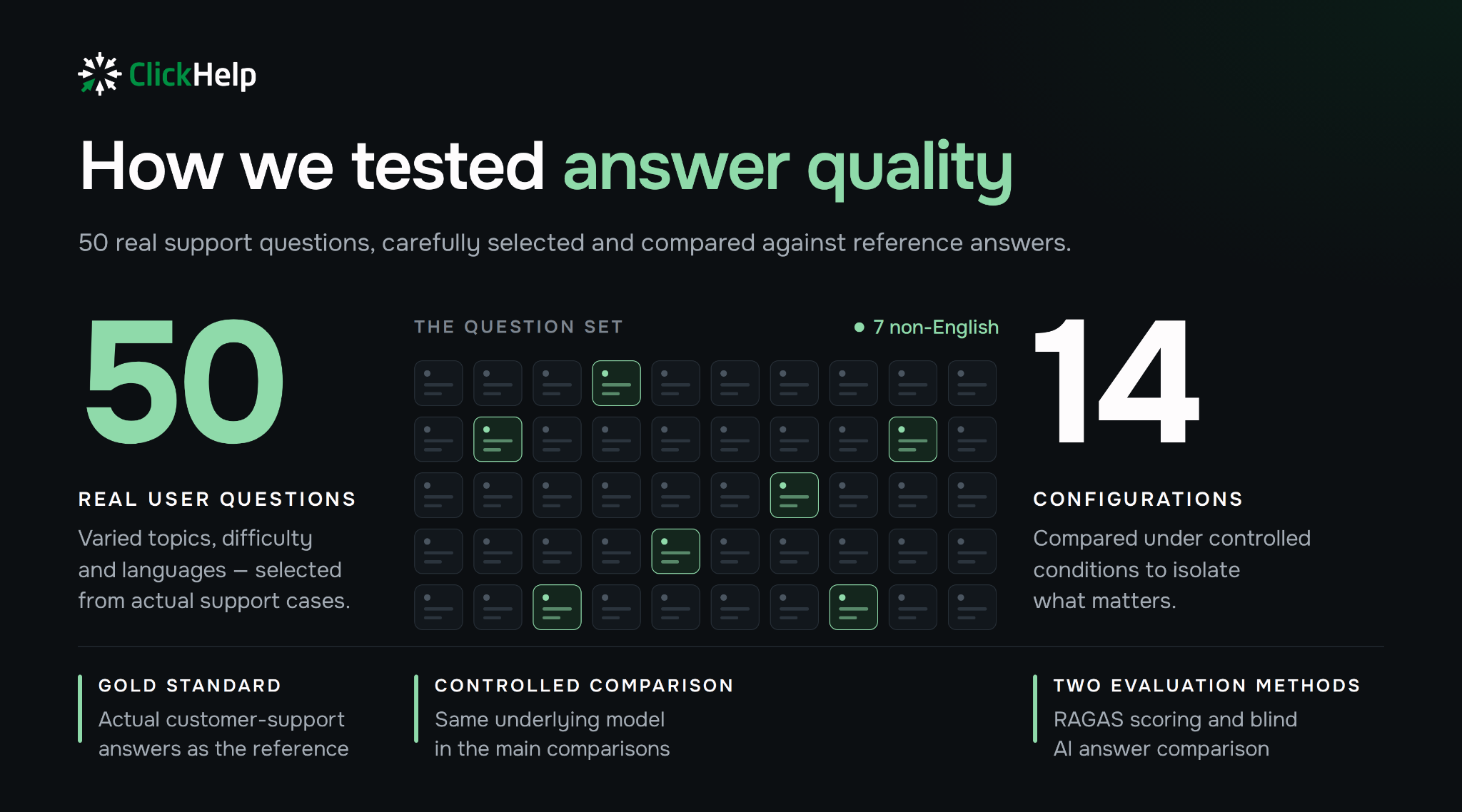
Which AI documentation generator to choose depends on the document you need. For release notes, use a Jira app that reads your release version. For step-by-step user guides, record the process with Scribe or Guidde. For API references, generate from code or an OpenAPI spec with Mintlify. For a full documentation site with an AI agent, look at GitBook.
Every tool on this list writes a draft. None of them knows which changes are approved, which settings were renamed last sprint, or what your users actually need to do. That part stays with the people who answer for the docs.
Below you’ll find 10 AI generators compared on the same criteria and a table for picking one by document type.
Best AI Documentation Generators in 2026
An AI documentation generator is a tool that turns source material (code, a ticket list, a screen recording, a prompt with files) into a written document. The tools below differ mostly in what they take as input, and that sets the order: docs platforms first, then capture tools, then a single-purpose release notes app, then general AI writing and document tools.
We compared each tool on four things:
- Input: what you have to give it.
- Output: what you get back and in which format.
- Editing and export: how you fix the draft and where it can go next (Markdown, HTML, PDF, a docs site).
- Team workflow: review, permissions, version history.
We also note each tool’s main limitation for software documentation and its pricing model. For current prices, check each vendor’s pricing page.
1. GitBook — for a docs site with an AI agent built in
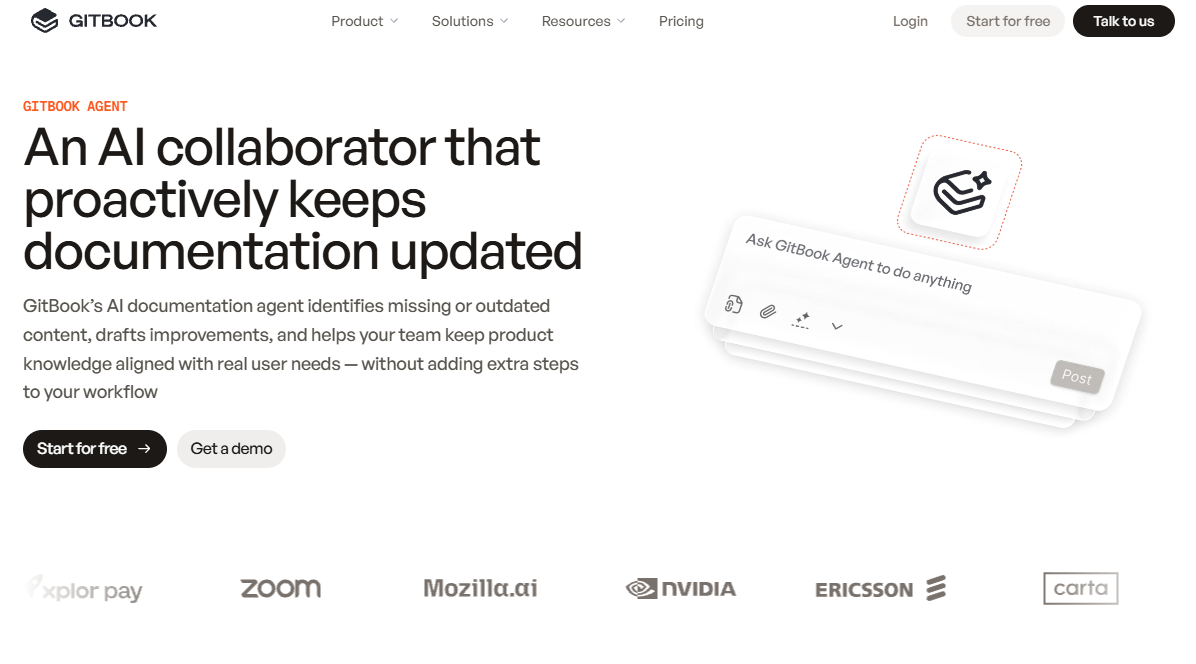
GitBook is a documentation platform with a block editor, Git sync, and published docs sites. Its AI layer has two parts: GitBook Agent, which drafts and proposes changes to your content, and an AI Assistant that answers readers on the published site. You give it your existing docs, an OpenAPI file, or a plain-language request; you get edits as change requests that someone on the team approves.
Features
- GitBook Agent drafts pages and suggests updates as change requests, so nothing goes live without review. The agent is still in beta.
- Two-way sync with GitHub and GitLab for docs-as-code teams.
- OpenAPI blocks with a test playground for API references.
- AI search on Premium; the reader-facing AI Assistant on Ultimate.
Pros
- AI edits go through change requests, which matches how code review already works.
- Git sync means writers and developers can edit the same content.
- Free plan for one user and a gitbook.io site.
Cons
- Per-site plus per-user billing adds up when you run several docs sites.
- The free plan caps GitBook Agent at 10 messages a week.
- Connecting the agent to support tools, Slack, or GitHub requires Ultimate.
Pricing: free plan for one user; paid plans billed per site plus per user, with agent integrations and the reader-facing AI Assistant on higher tiers.
2. Mintlify — for API and developer documentation
Mintlify is a docs-as-code platform for developer documentation. You point it at an OpenAPI spec or a repository, and it builds an interactive API reference with request and response examples. Its writing agent drafts pages from your existing content and code references, and opens a pull request with the changes.
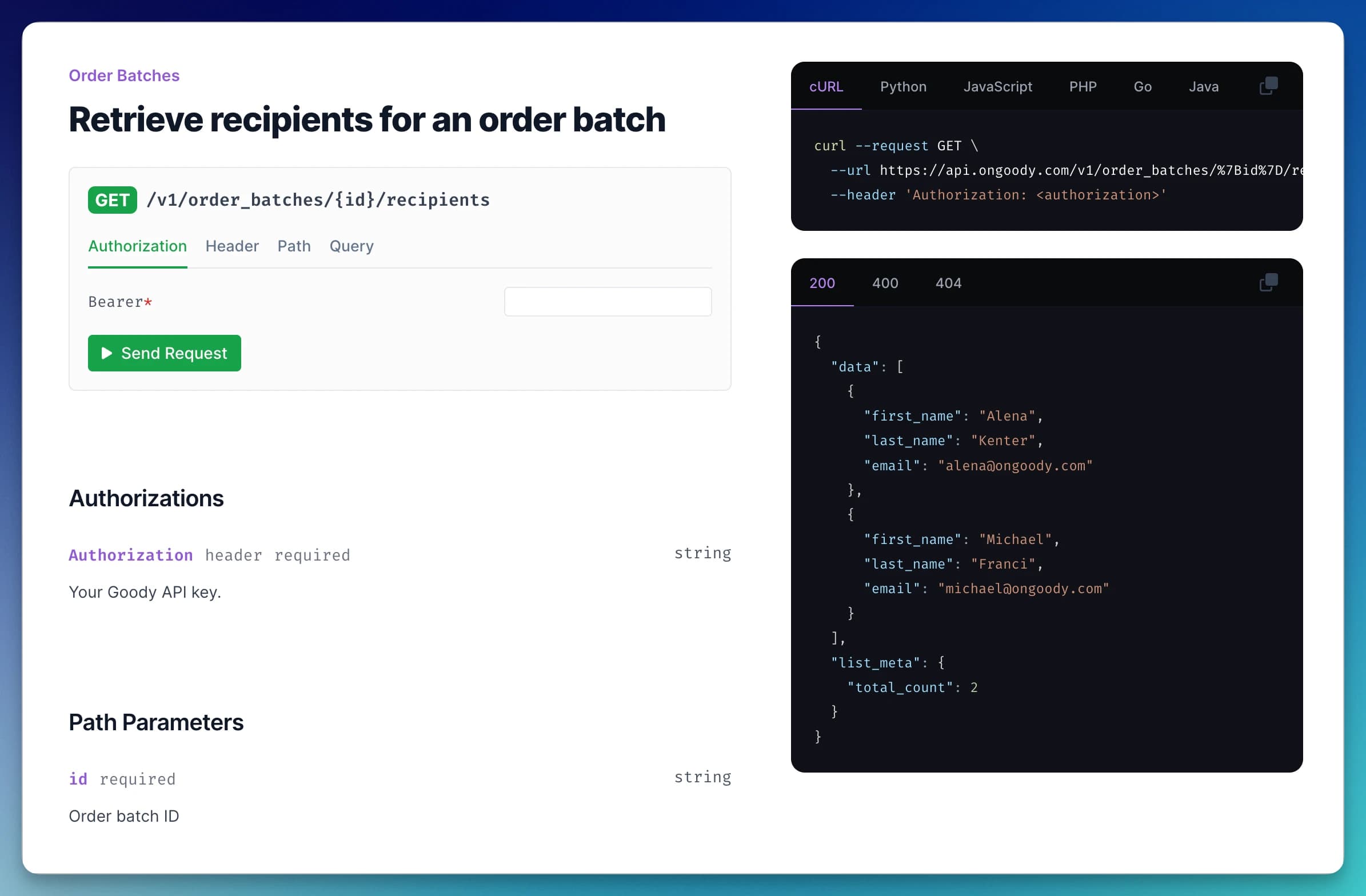
source: Mintlify
Features
- API reference generated from OpenAPI and AsyncAPI specs, with an API playground.
- Writing agent that drafts or updates pages and proposes them as pull requests.
- AI Assistant that answers readers with citations to your pages.
- MDX components, Git-based workflow, preview deployments.
Pros
- The draft starts from your code and spec, not from a blank prompt, so there is less to invent.
- Changes arrive as pull requests that developers already know how to review.
- Polished default design for developer portals.
Cons
- Built for developer docs; less suited to end-user guides, SOPs, or training material.
- AI features sit on the Pro plan, and usage is metered in AI credits.
- Writers who don’t work in Git face a learning curve.
Pricing: free plan; paid plans billed per seat, with a seat minimum on team plans; Enterprise on request.
3. Scribe — for step-by-step guides from a recorded process
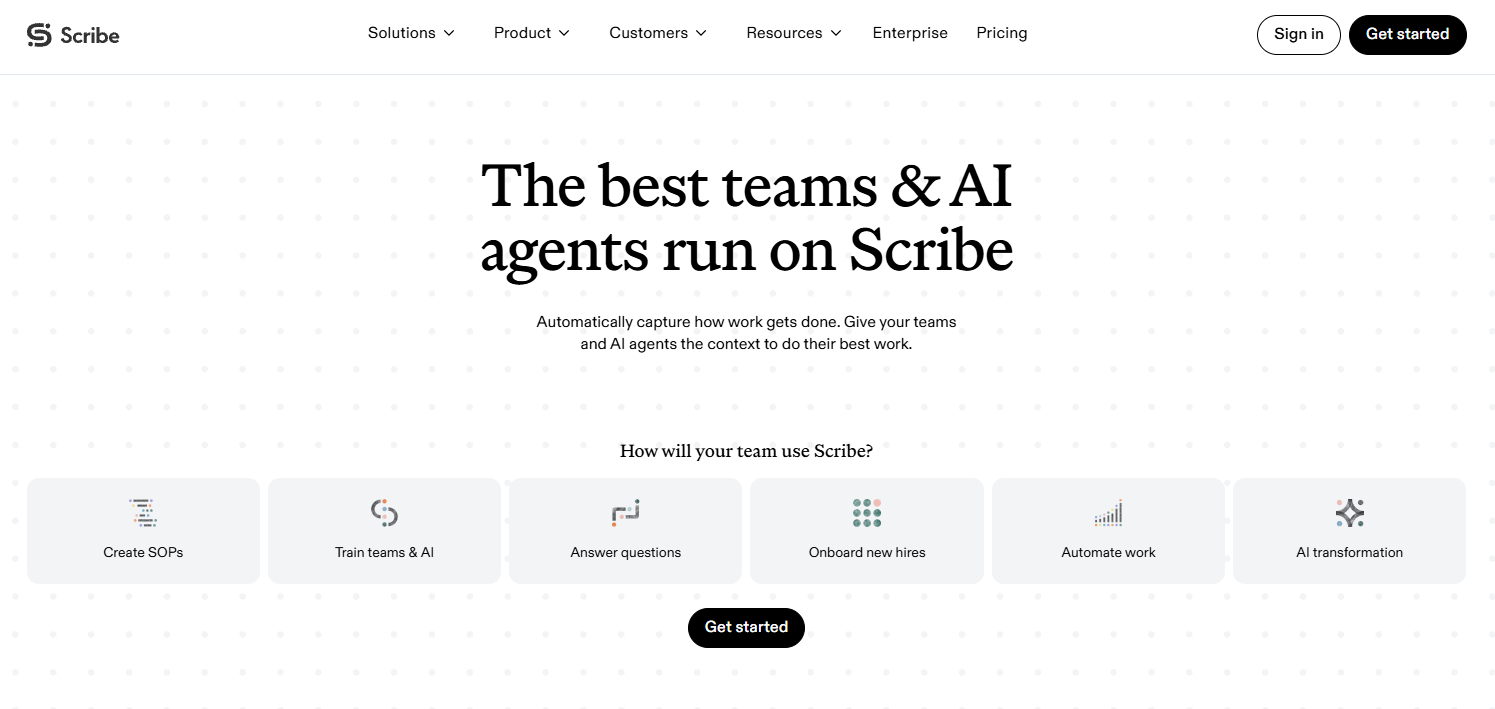
Scribe records your clicks as you complete a task and turns them into a written guide: one numbered step per action, each with an annotated screenshot and an AI-written description. The input is you doing the process once. The output is a guide you can edit, redact, and export.
Features
- Browser capture on all plans; desktop app capture on paid plans.
- AI-generated step titles and descriptions.
- Screenshot editing and redaction of sensitive data.
- Export to PDF, HTML, and Markdown on paid plans.
Pros
- The guide exists the moment you stop recording, with no render step.
- Screenshots come from the real interface, so the steps match what users see.
- Markdown export makes it easy to move a guide into a help center or help authoring tool.
Cons
- The AI describes what happened on screen, not why. Prerequisites, context, and edge cases still need a writer.
- When the UI changes, you record the process again.
- The free plan has no export and captures web apps only.
Price (October 2026): Free Basic plan; Pro Personal 35perseatpermonth(25 billed annually); Pro Team $17 per seat per month with a 5-seat minimum; Enterprise on request.
4. Guidde — for video instructions with AI narration
Guidde also starts from a recording of your screen, but its output is a video. It splits the recording into steps, writes the narration script, and voices it with an AI voice. You edit the script or a single segment instead of re-recording the whole flow.
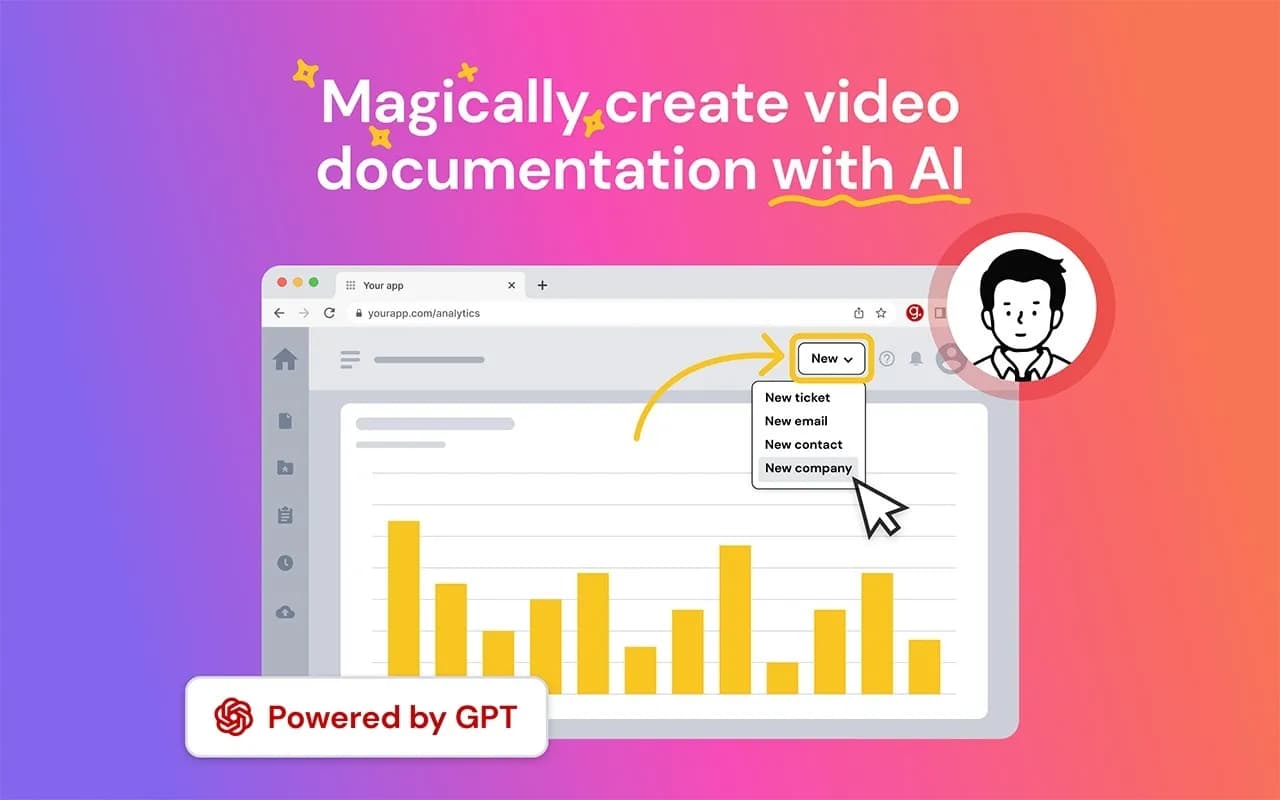
source: Guide.com
Features
- Browser and desktop capture.
- AI-written step descriptions and narration with generated voiceover.
- Segment-level editing: trim, re-record a step, regenerate the voice.
- Sharing by link and embed.
Pros
- A narrated walkthrough without video-editing skills.
- Fits onboarding, training materials, and customer education where people watch rather than read.
- Free plan for one creator.
Cons
- Video is hard to search, skim, or quote in an AI answer; you still need a text version for the help center.
- Narration describes the screen, so the writer still adds context, prerequisites, and warnings.
- Every UI change means updating the recording.
Pricing: free plan for one creator; paid plans billed per creator; Enterprise on request.
5. Release Notes AI by Rogue Wombat Software — for release notes from Jira
Release Notes AI is a Jira Cloud app from the Atlassian Marketplace. You open it inside a project, pick a release version, and click Generate; the app reads the issues in that version and writes release notes from them. You can change the system prompt to set your own tone and structure.
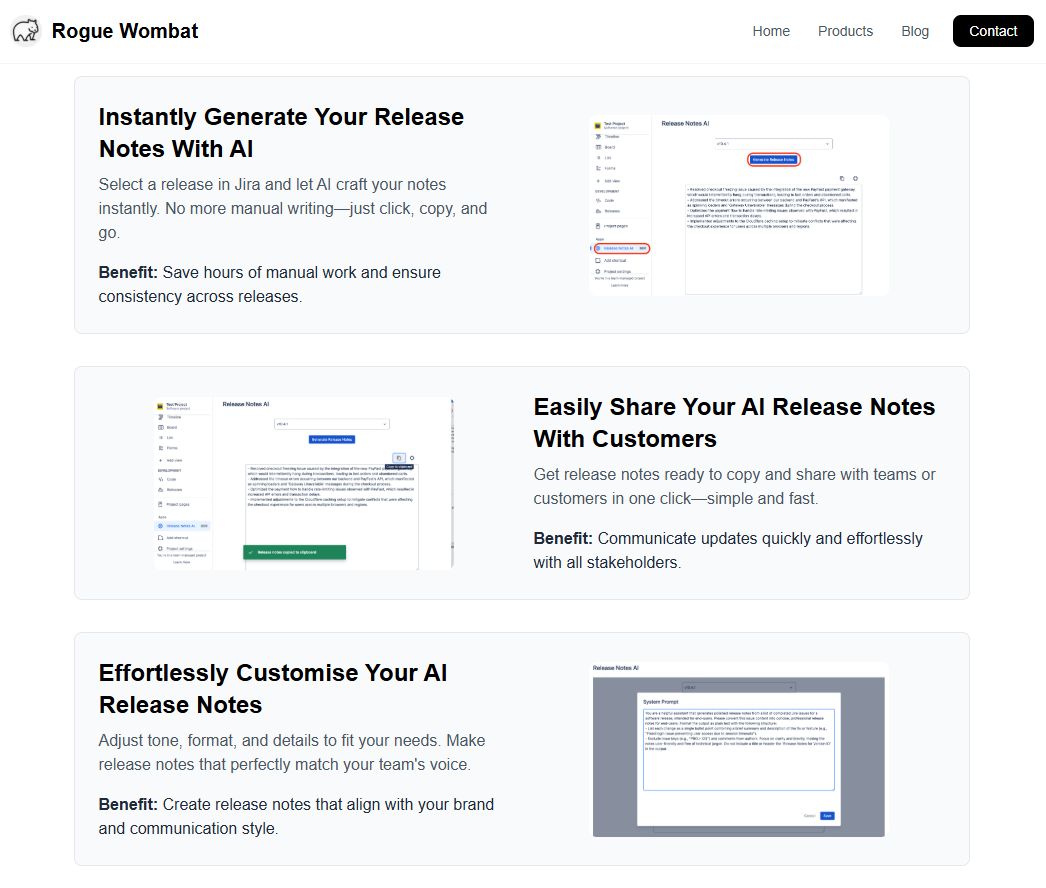
source: rougewombatsoftware.com
Features
- Generates release notes from the issues in a Jira release version.
- Editable system prompt for house style, grouping, and audience.
- Notes you can edit and share with customers and stakeholders.
- Runs on Atlassian Forge inside Jira Cloud.
Pros
- Works where release data already lives, so there is no copy-paste of ticket lists.
- One release in, one draft out: a narrow job done in a few clicks.
- Free for small Jira sites.
Cons
- The notes are only as good as your tickets. Vague summaries produce vague notes, and internal jargon leaks into customer-facing text.
- It sees everything in the version, including work that should not be announced. Someone has to decide what ships in the notes.
- Jira Cloud only.
Pricing: free for Jira sites with up to 10 users; larger sites pay per user through the Atlassian Marketplace.
6. Bit.ai — for collaborative docs and internal wikis
Bit.ai is a workspace for shared documents and wikis with an AI writing assistant, AI Genius. You write in the editor and ask AI Genius for an outline, a first draft from a template, or a rewrite of selected text. The output is a living Bit doc you can turn into a wiki by adding subpages and share by link or embed.
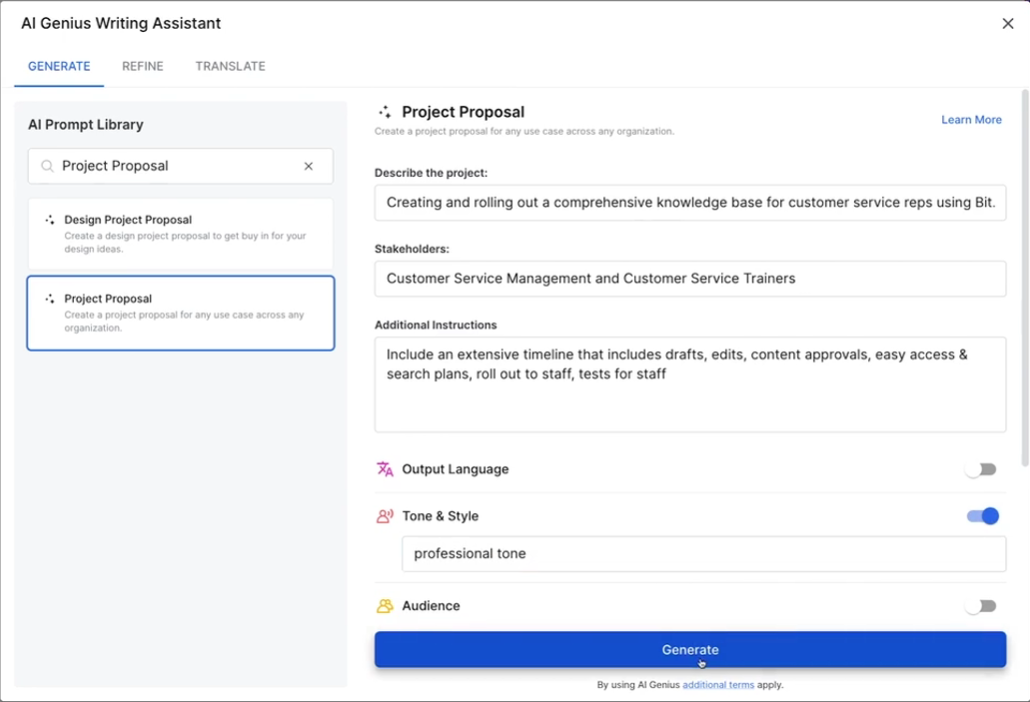
Features
- AI Genius with 200+ prompts for drafting, outlining, and refining text.
- Docs that become wikis with a page hierarchy.
- Real-time co-editing, comments, and @mentions; guests with edit, comment, or read-only access.
- Sharing through live links, trackable links, password protection, and website embeds.
Pros
- One place to draft with AI and collaborate with teammates and clients.
- Templates for SOPs, user manuals, and process docs give the AI a structure to fill.
- Low entry price for paid plans.
Cons
- AI Genius writes from your prompt, not from your product: it has no view of code, tickets, or the live UI.
- AI Genius is not available on the free plan.
- Built for internal knowledge sharing rather than versioned, multi-output product documentation.
Pricing: free plan for small teams, without AI Genius; paid plans billed per user, each with a monthly AI word allowance.
7. AI Doc Maker — for a quick editable document from a prompt and files
AI Doc Maker is a general AI document generator. You describe what you need in a chat, optionally attach files, and it produces a formatted document you can keep editing through the same chat, then download as Word, PDF, or another format. It also makes slides, spreadsheets, and voiceovers.
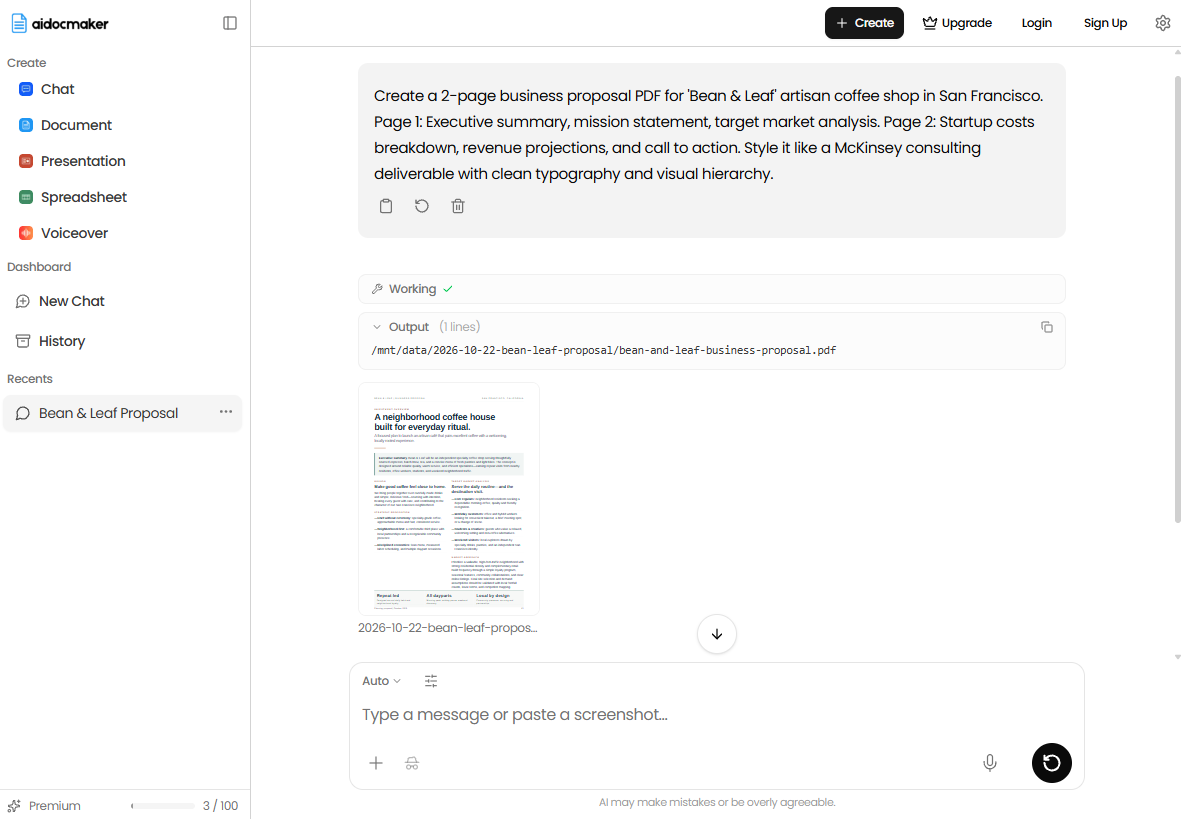
Features
- Generate a document from a prompt, a template, or attached files.
- Edit the draft by chatting with the AI.
- Export to Word and PDF; slides and spreadsheets from the same workspace.
- File uploads on paid plans (up to 500 pages on Standard, 2,500 on Premium).
Pros
- No signup needed to try it; the free plan covers documents, slides, and spreadsheets.
- Attaching a spec or meeting notes gives the model real source material to work from.
- Fast for one-off documents: a draft proposal, a training handout, a first pass at a manual.
Cons
- Each document stands alone: no topics, no reuse, no versions, no review workflow.
- Not connected to your product, code, or tickets.
- Output is a file to download, so updating it means generating or editing it again.
Pricing: free plan with request limits; paid plans with higher limits and file uploads, with a free trial.
8. Gamma — for visual documents and training materials
Gamma turns an outline, a prompt, or an uploaded Word doc, PDF, or Google Doc into a designed long-form document. It writes the body copy, picks layouts, adds callouts and charts, and applies a theme. Training manuals, onboarding handouts, and white papers are where it fits best.
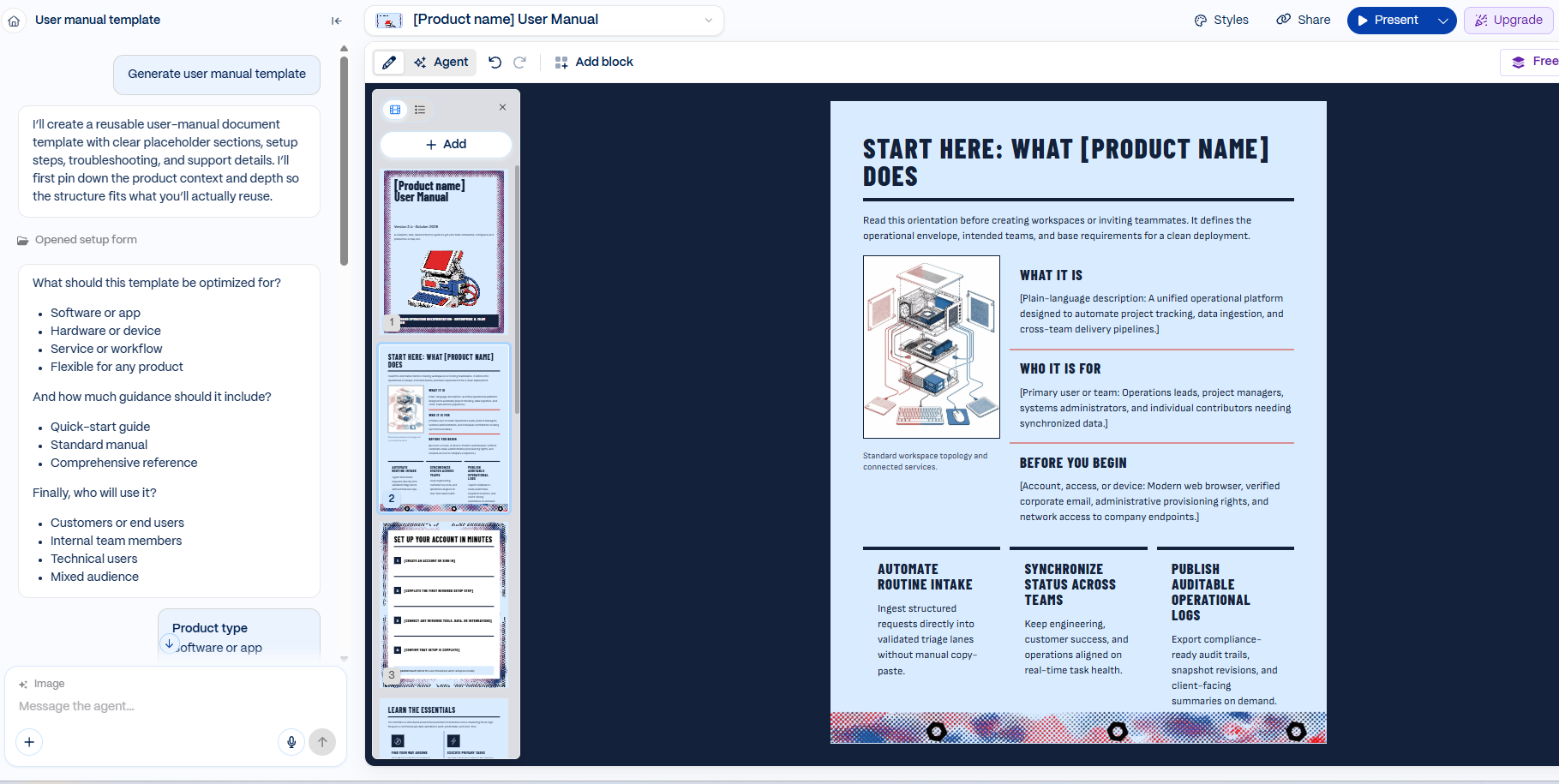
Gamma user manual generated
Features
- Generate from a prompt or from an imported Word doc, PDF, or Google Doc.
- Themes and custom branding; layouts adjust for mobile.
- AI editing of individual sections.
- Share as a live web link with view analytics, or export to PDF or Word.
Pros
- Raw notes become a readable, well-designed document in minutes.
- Good for training materials that need visuals more than precision.
- Free plan with a starter pack of AI credits.
Cons
- Design comes first; structure for step-by-step procedures and reference content is limited.
- Like any generator, it works only from what you give it; every fact in the result needs checking against your source.
- No topic reuse, versioning, or review workflow for documentation that changes every release.
Pricing: free plan with a starter pack of AI credits; paid plans add credits and features, billed monthly or annually.
9. Template.net AI Document Generator — for documents that follow a standard template
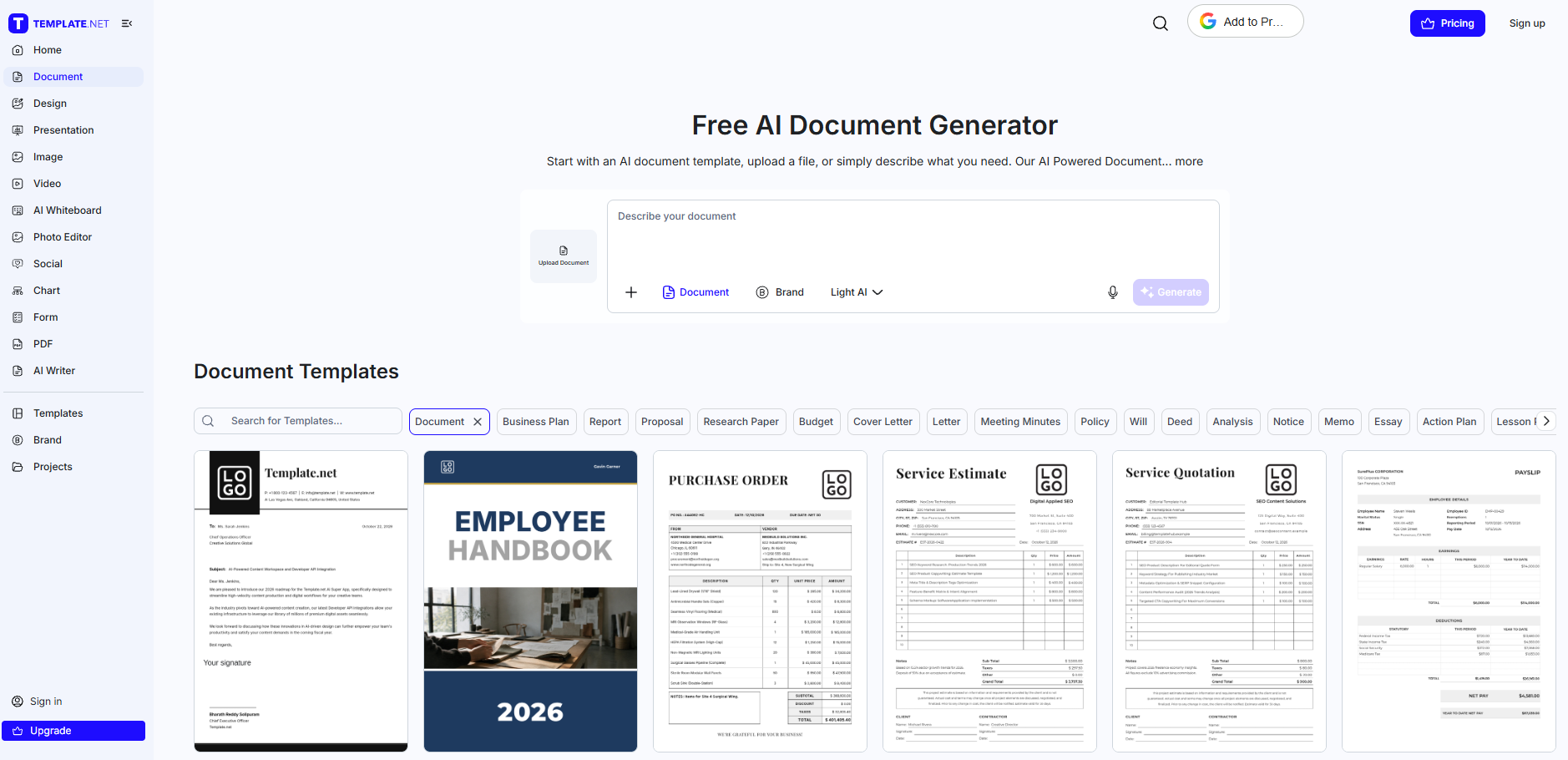
Template.net pairs an AI generator with a large library of document templates. You start from a template, type or dictate a prompt, or upload a PDF or DOCX, and it returns a structured, editable document. For documentation work, the relevant templates are manuals, handbooks, policies, work procedures, and requirements documents.
Features
- Generate from a prompt, voice input, an uploaded file, or a template.
- Dedicated generators for manuals, handbooks, policies, and checklists.
- 20+ languages.
- Export to PDF, DOCX, and Google Docs; save a result as a reusable template.
Pros
- A template gives the AI a fixed structure, which keeps output consistent across documents.
- Free to try without signing up.
- Useful for one-off business documents around a release: a test plan, a requirements doc, an internal policy.
Cons
- Templates are generic; nothing ties the content to your product.
- Each document is a separate file with no shared content or linking between documents.
- Not built for publishing a help site or keeping docs in step with releases.
Pricing: free AI document generation with no signup; paid plans for more AI usage and premium templates.
10. Piktochart AI Document Generator — for visual handbooks and one-pagers
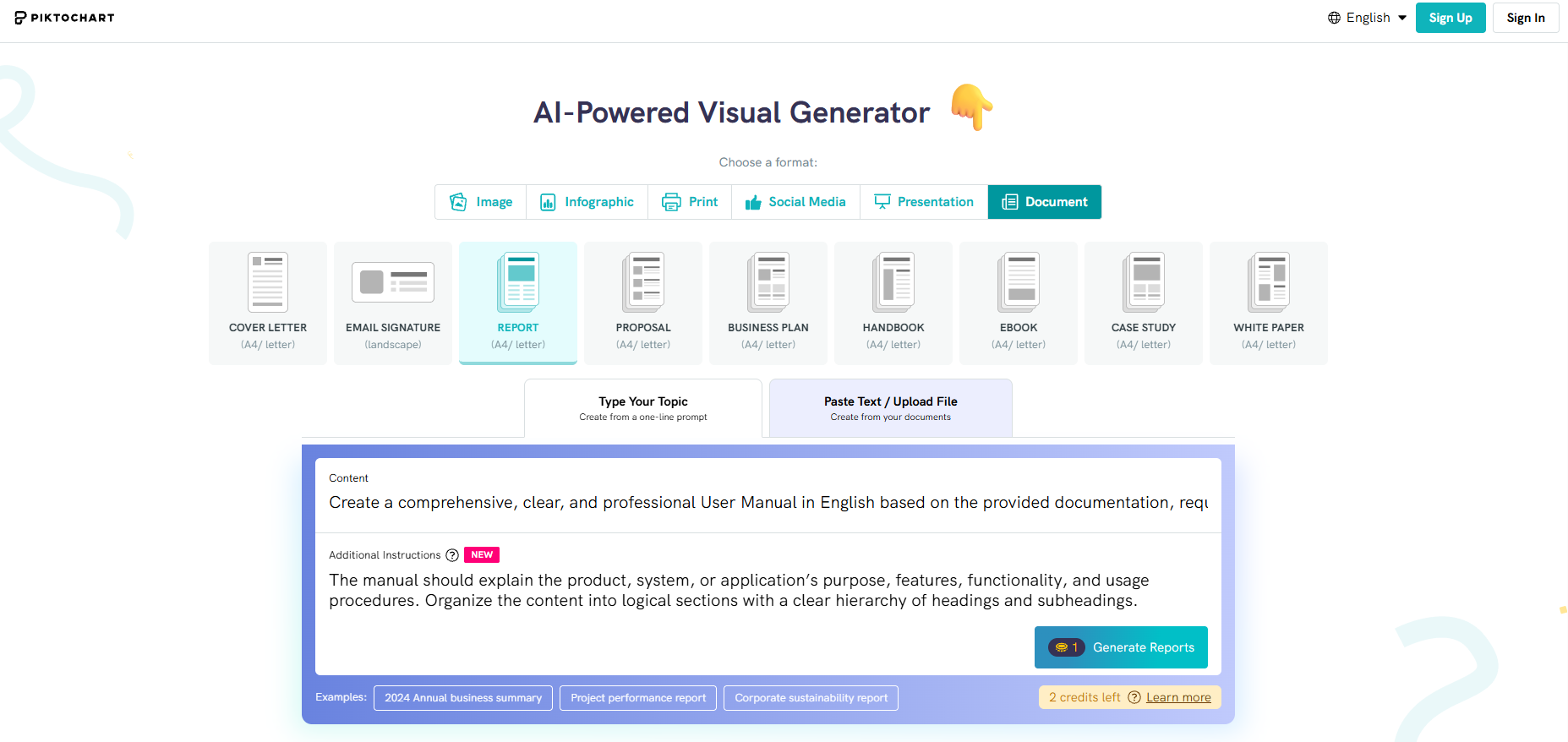
Piktochart is a visual design tool with an AI document generator. You enter a prompt or upload a PDF, DOCX, or TXT file, choose whether to summarize or preserve the original text, and get a multi-page designed document with headings, charts, and icons. You then adjust every block in a drag-and-drop editor.
Features
- Generate from a prompt or from an uploaded PDF, DOCX, or TXT file.
- “Preserve content” mode that redesigns your text without rewriting it.
- AI outline for structuring the document before layout.
- Visual editor with charts, icons, brand colors, and fonts; export to PDF or PNG, or share by link.
Pros
- Preserve mode keeps approved wording intact instead of rewriting it.
- Good for handbooks, onboarding one-pagers, and training material that needs visuals.
- Generous free plan.
Cons
- Output is a designed page, not structured documentation: hard to search, link, or update topic by topic.
- No connection to product data, versions, or a review process.
- Text-heavy procedures lose clarity when squeezed into visual layouts.
Pricing: free plan with monthly AI credits; paid plans add credits; Enterprise on request.
AI documentation generators compared
| Tool | Best for | Input | Output | Key limitation | Pricing model |
| GitBook | Docs site with an AI agent | Existing docs, OpenAPI, prompts | Change requests on a published site | Per-site + per-user billing | Free plan; per site + per user |
| Mintlify | API and developer docs | Code, OpenAPI/AsyncAPI | API reference, pull requests | AI on Pro only, metered credits | Paid plans; free trial |
| Scribe | Step-by-step guides | Recorded process | Screenshot guide; PDF, HTML, Markdown | Describes clicks, not context | Free plan; per seat |
| Guidde | Video instructions | Recorded process | Narrated video | Video is hard to search and update | Free plan; per creator |
| Release Notes AI | Release notes from Jira | Jira release version | Release notes | Only as good as ticket summaries | Free up to 10 Jira users; per user |
| Bit.ai | Collaborative docs and wikis | Prompt, templates | Living docs and wikis | AI not on free plan; no product context | Free plan; per user |
| AI Doc Maker | Quick one-off documents | Prompt, attached files | Word, PDF | No reuse, versions, or review | Free plan; paid tiers |
| Gamma | Visual training materials | Prompt, Word, PDF, Google Doc | Designed doc, web link, PDF | Fills gaps with plausible text | Free plan; paid tiers |
| Template.net | Template-based documents | Template, prompt, file | PDF, DOCX, Google Docs | Generic templates, standalone files | Free, no signup; paid tiers |
| Piktochart | Visual handbooks, one-pagers | Prompt, PDF, DOCX, TXT | Designed doc, PDF, PNG | Not structured documentation | Free plan; credit-based tiers |
For current prices, check each vendor’s pricing page.
Choose an AI Generator for Your Document Type
Pick the generator by the source material you already have, not by the feature list. AI writes accurate documentation only when it works from something true: a release version, a recording of the real UI, an API spec. Without that, it writes something plausible.
| Document | Source material to give the AI | Tool that fits |
| Release notes | Approved changes in a release version | Release Notes AI |
| User guide | A recording of the task in the current UI | Scribe, Guidde |
| Software documentation | Specs, existing docs, merged changes | GitBook, Mintlify, a help authoring tool with AI |
| API docs | OpenAPI spec or code | Mintlify, GitBook |
| SOP | A recording of the process plus the owner’s notes | Scribe, Template.net |
| Knowledge base article | Support tickets and unanswered reader questions | Any LLM with the tickets attached, then your KB editor |
From AI Draft to Published Documentation
Whichever tool you pick, AI gives you a draft. What happens next decides whether readers get accurate docs: someone checks the draft against the source, fits it into the existing documentation, and publishes it.
In ClickHelp, a help authoring tool, AI works inside that process. WriteAssist edits text in the topic editor, and an AI agent connected through the Authoring MCP Server can create and update topics with your permissions. AI drafts can then go through the same review statuses as a teammate’s work before anyone publishes them.
FAQ
What is the difference between an AI document generator and an AI documentation tool?
An AI document generator produces a single file from a prompt: a report, a manual, a proposal. An AI documentation tool manages a whole body of documentation with AI built in, including topics, reuse, versions, review, and publishing. Gamma and AI Doc Maker are generators; GitBook, Mintlify, and help authoring tools like ClickHelp are documentation tools.
How do I choose an AI documentation generator?
Start from the document you need and the source material you have. Release notes come best from your issue tracker, user guides from a screen recording, and API references from an OpenAPI spec or code. Then check how the tool fits your team: whether drafts go through review, how you export or publish them, and whether the pricing model scales with your number of users or sites.
Can I create documentation with AI for free?
Yes, with limits. Scribe, Guidde, GitBook, Gamma, Piktochart, AI Doc Maker, and Template.net all have free plans, and Release Notes AI is free for Jira sites with up to 10 users. Free plans usually cap AI usage, exports, or team features, so check the limits before you rely on one for team documentation.