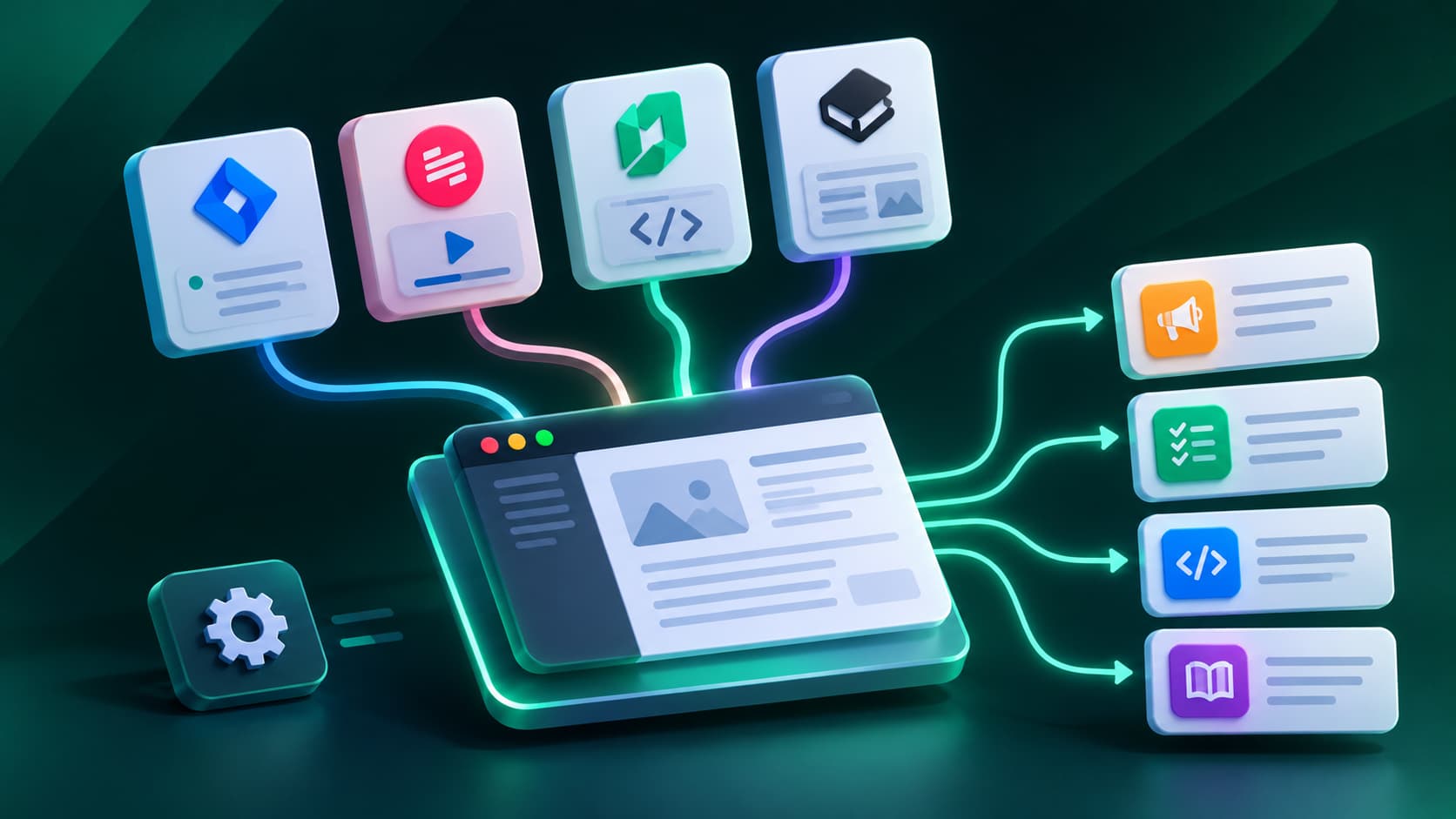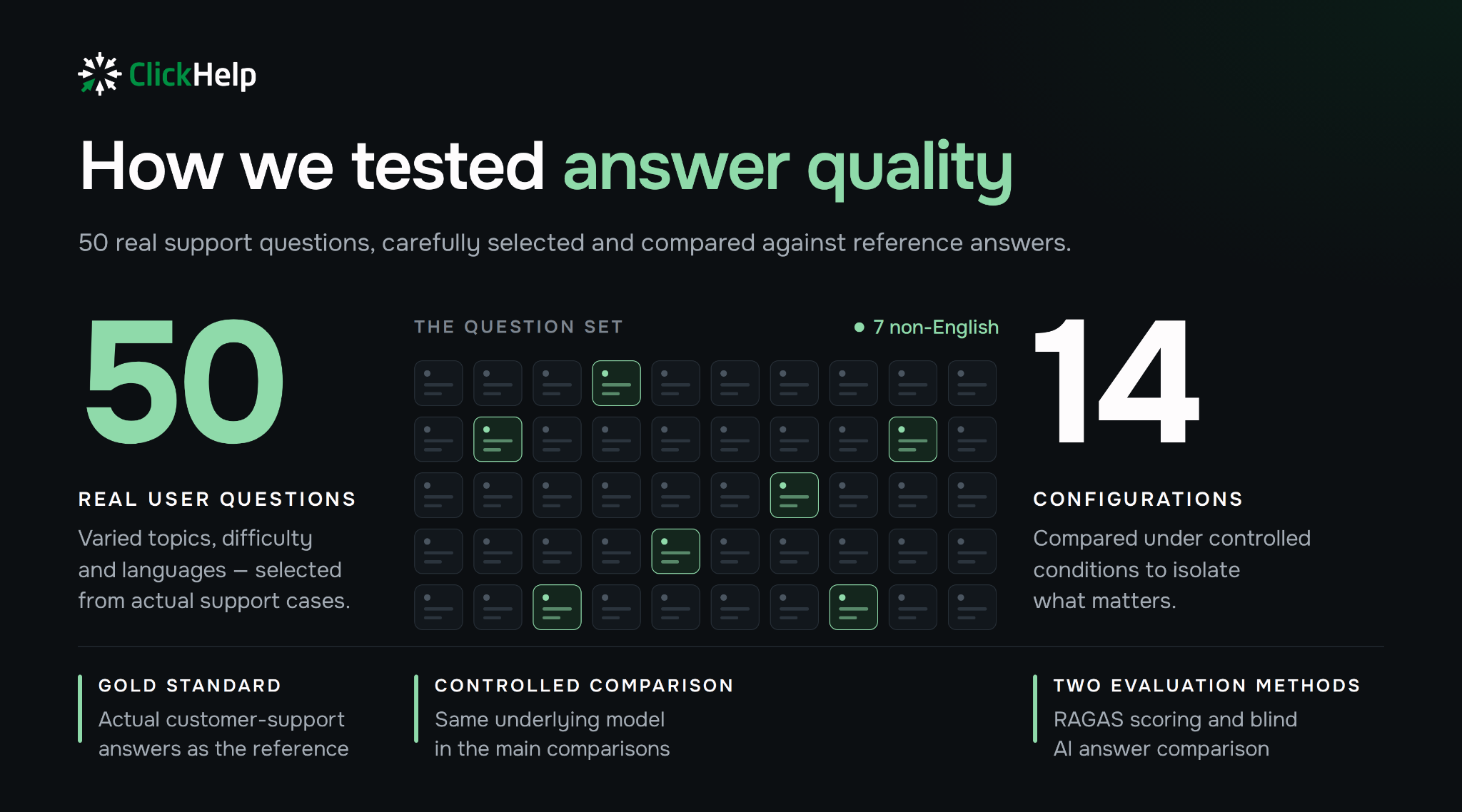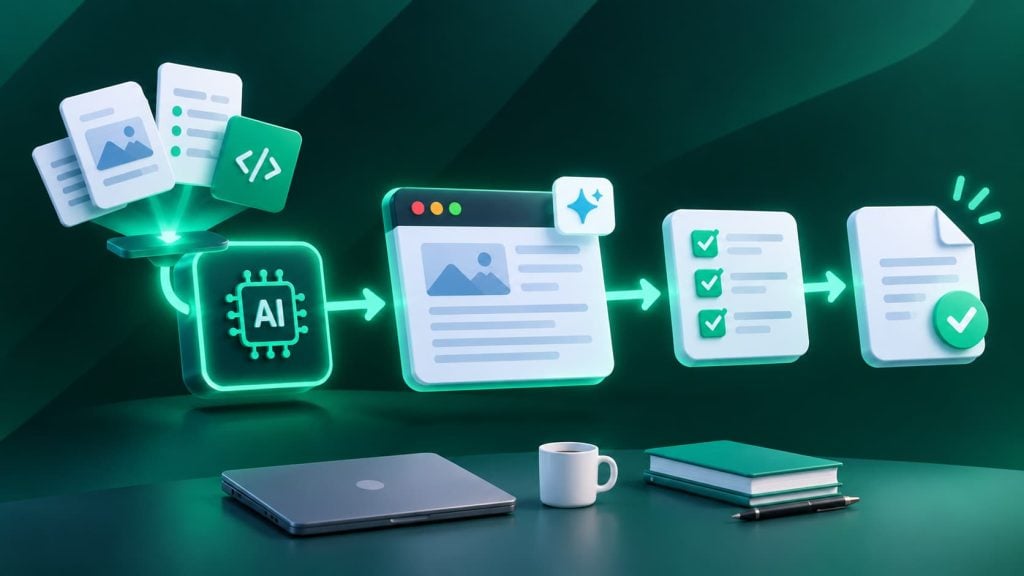
To create documentation with AI, start from source material you trust, give the model a prompt that names the reader and the task, and have a person verify the draft before it goes live. The tool matters less than what you feed it and who checks the result.
- AI writes accurate documentation only from source material you trust: an approved release version, a recording of the current UI, an OpenAPI spec. Without it, the draft is plausible rather than correct.
- Each document type needs its own input. Release notes come from shipped changes, user guides from a screen recording, API references from the spec or code, and knowledge base articles from real support questions.
- A useful prompt names the reader, the task, the source, and the scope, and tells the model to mark gaps as [MISSING] instead of guessing.
- Before publishing, trace every fact to the source, follow the steps in the current product, run API examples, and record who approved the draft.
- A draft is ready when a user can complete the task it describes and someone who answers for the docs has checked that.
- In ClickHelp, AI drafts and edits topics through WriteAssist and the Authoring MCP Server. Review and publishing stay separate steps.
This guide covers six common document types, a prompt template, a verification checklist, and how to tell when an AI draft is ready to publish.
Create Documentation with AI by Document Type
The source material decides the quality of the draft. AI writes accurate documentation only when it works from something true: a release version, a recording of the real UI, an API spec. Without that, it writes something plausible.
Create Release Notes with AI
To create release notes with AI, generate them from approved, shipped changes, not from every ticket in the sprint. A bad draft does real damage here, because customers read release notes as a promise.
A workflow that holds up:
- Clean the release version first. Only closed issues that actually shipped, each with a summary a customer could understand. Move internal refactoring and unreleased flags out of the version.
- Generate from that version. A Jira app like Release Notes AI reads it directly. With any other LLM, paste the issue list and tell it who reads the notes (admins, end users, developers) and which sections you use: New, Improved, Fixed, Breaking changes, Known issues.
- Rewrite for the reader. The draft will mirror your tickets. That’s the part to fix.
The difference looks like this:
From the ticket: Fixed NPE in SSO callback handler when IdP returns empty group claim.
For the reader: Fixed: sign-in through SSO no longer fails when your identity provider sends a user without groups.
Before publishing, check three things AI gets wrong most often: breaking changes that are missing or understated, known issues left out because no ticket was closed for them, and team jargon. If you also keep a changelog for developers, generate it separately. A changelog lists every change; release notes explain the ones users will notice.
Create User Guides with AI
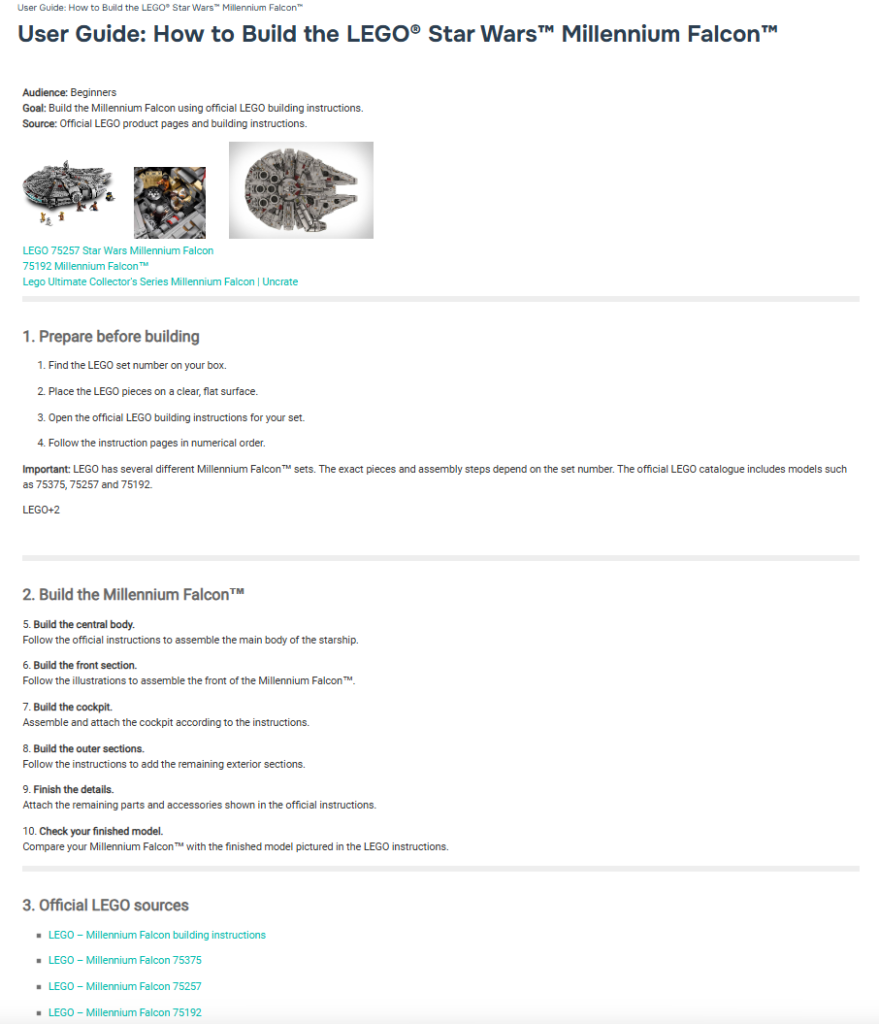
To create a user guide with AI, record yourself completing the task in the current version of the product and let a capture tool turn the recording into steps. Scribe produces a written guide with screenshots; Guidde produces a narrated video.
The recording gets the clicks right. Everything around the clicks is still yours to write:
- Prerequisites: which role, plan, or setting the reader needs before step 1.
- The why: a sentence on what each non-obvious step achieves.
- Failure paths: what the user sees when something goes wrong, and what to do next.
- Scope: where this guide ends and which guide picks up from there.
Screenshots go stale with every UI release. Keep a list of which guides show which screens, so a redesign tells you exactly what to re-record.
Create Software Documentation with AI
To create software documentation with AI, start from the material your team already trusts: the spec or PRD, existing topics, and the changes that were merged. Ask the model to draft only the topics affected by the change, in your existing structure, using your terminology.
A docs platform or help authoring tool earns its place over a standalone generator here. The draft lands next to the topics it relates to, reuses shared content instead of copying it, and goes through review before it is published.
Generate API Docs with AI
Generate the API reference from the OpenAPI spec or code, then use AI for what a spec can’t hold: overviews, authentication guides, and usage examples. Mintlify and GitBook both build interactive references from a spec. In API docs, one invented detail (a parameter name, a default, an error code, a rate limit) breaks someone’s integration, so run every example request against a test environment before it goes live.
Create SOPs with AI
Capture the procedure while someone performs it, add the owner’s notes on roles, exceptions, and approvals, and let a template-based generator give it a consistent shape. The process owner approves the result, not the writer.
Create Knowledge Base Articles with AI
Start from real questions: support tickets, chat transcripts, and questions your docs assistant couldn’t answer. One article per problem, symptom in the title, fix in the first lines. Search the knowledge base before publishing; AI is fast at drafting duplicates.
How to Prompt AI and Verify the Result
A good documentation prompt names the reader, the document type, the source material, and what to leave out. Many hallucinations in documentation come from a missing source, not from a weak model: when the prompt says “write a guide to SSO setup” and nothing else, the model writes the average SSO guide on the internet.
Use this template and fill in every line:
Audience: [who reads this and what they already know]
Document type: [release note / user guide / API overview / SOP / KB article]
Task the reader must complete: [one sentence]
Source material: [attached spec, ticket list, recording transcript, existing topics]
Scope: [what this covers and what it does not]
Format: [headings, numbered steps, length, our template]
Terminology: [product names and UI labels exactly as in the product]
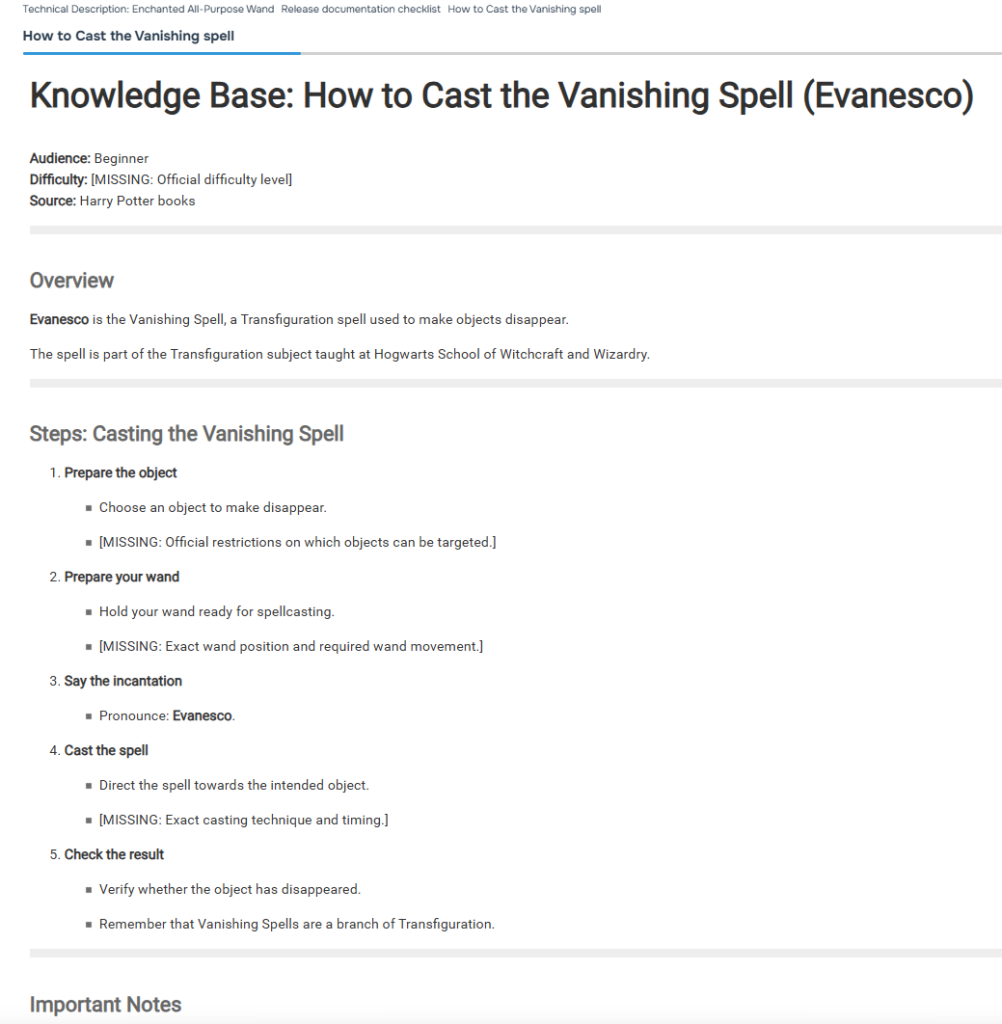
Rules: Use only the source material. If something is missing, write [MISSING: ...] instead of guessing.
The last rule matters most. A draft full of [MISSING] markers is more useful than a fluent one, because it shows you where the gaps are instead of hiding them.
Checklist: how to verify AI generated documentation
- Every factual statement traces back to a line in the source material.
- UI labels, setting names, and menu paths match the current version of the product.
- Someone followed the steps in a test environment and reached the result.
- Prerequisites (roles, plans, settings) are stated before step 1.
- API parameters, defaults, error codes, and limits match the spec; example requests were run.
- Terminology follows your glossary; no synonyms invented for product terms.
- The draft doesn’t duplicate an existing topic or KB article.
- A named reviewer approved it, and the approval is recorded in your workflow.
Models tend to go wrong in the same places in almost every documentation draft: names of settings, parameter values, plan limits, and steps that were true two releases ago. Check those first.
When Is AI Generated Documentation Ready to Publish
AI generated documentation is ready to publish when a user can complete the task it describes, and someone who answers for the docs has checked that. Grammar, structure, and tone don’t decide it.
We took this question apart in the ClickHelp webinar AI can write your docs. It can’t tell you when they’re done, run by Ian Avilov, Product Lead at ClickHelp, on one ordinary request: we released SSO, document it. Four points apply to any generator on this list:
- “Document the new feature” is not a task. SSO may need a new setup guide, edits to existing topics, and a release note. List that work before you generate anything.
- The request has to carry the context. Who sets up SSO, which identity providers are supported: if the request doesn’t say, the draft guesses.
- AI can gather part of that context itself when it can read your existing docs, for example through an MCP server.
- “Done” is defined by what the user can do. An admin connects the identity provider, users sign in, and a failed sign-in has a next step.
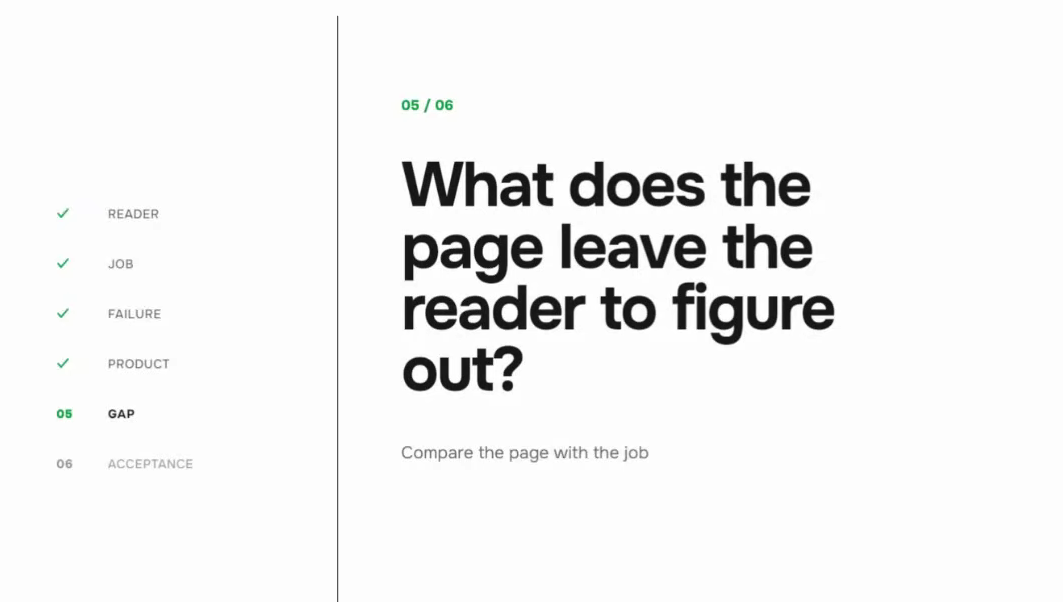
The webinar turns this into six questions: who reads the page, what job they need to do, how they fail, what the product does, what the page leaves them to figure out, and how you know it’s done.
How to Create Documentation with AI in ClickHelp
In ClickHelp, AI drafts and updates topics inside the same help authoring tool where your team reviews, reuses, and publishes them. A draft doesn’t leave as a file to paste somewhere else. It goes through the same workflow as everything you write by hand.
Here is how the pieces fit, from first draft to published page.
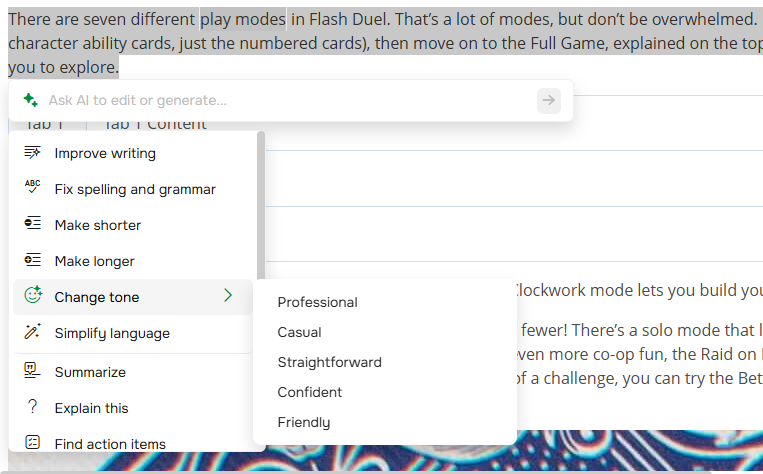
1. Draft and edit in the editor with WriteAssist. Select any text and ask AI to rewrite it, shorten it, or fix it on the spot. It works on the topic you have open, so the result stays in your structure and styles.
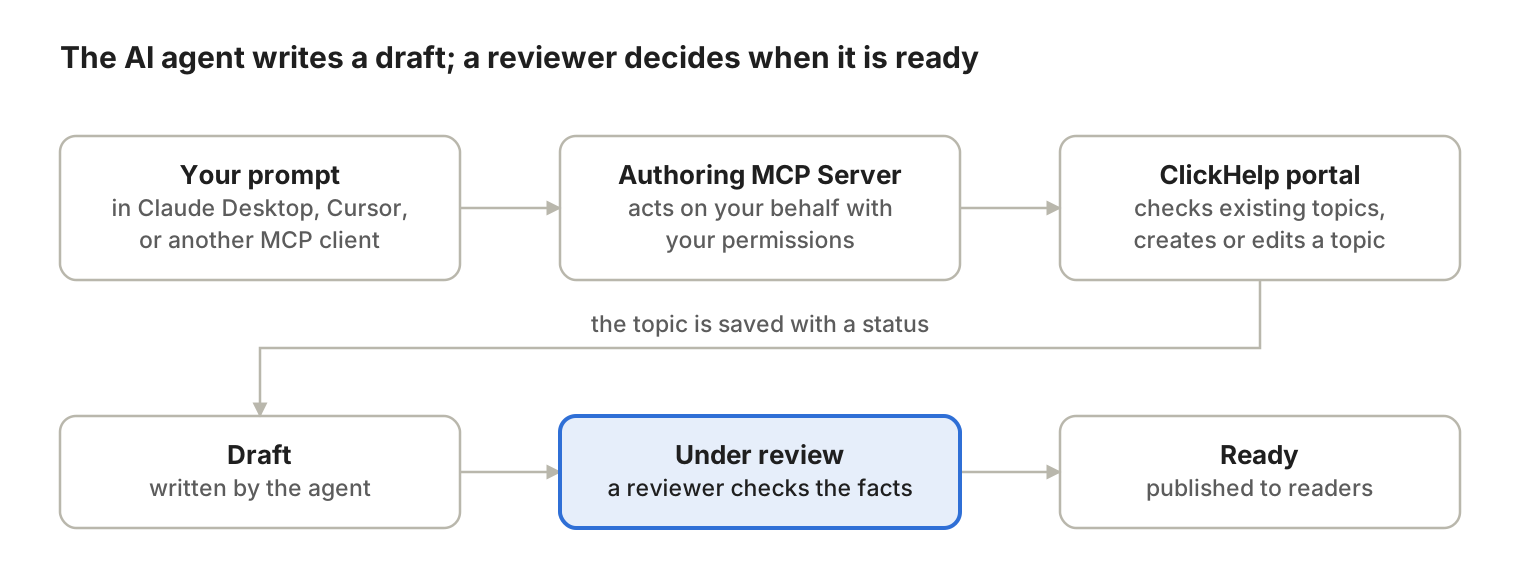
2. Let an AI agent work on your docs through the Authoring MCP Server. Connect Claude Desktop, Cursor, or another MCP client to your ClickHelp portal, and the agent can create and edit topics from plain-language instructions. Because it can read what already exists, it can check your current topics before drafting a new one: the context gap gets smaller. Once changes are reviewed and approved, your team publishes the updated manual through the standard publishing workflow.
Efficy used this approach to audit and restructure its E-deal CRM documentation. “This work would conservatively have required a full-time person for 6 months. It was done in a matter of days,” says Emmanuel Vaillant, Product Manager.
3. Reuse content instead of regenerating it. AI makes it cheap to write the same paragraph five times, slightly differently each time. Snippets, variables, and conditions keep one approved version of shared text, product names, and version numbers, so an update in one place reaches every topic that uses it.
4. Review before anything goes live. Workflow statuses, assignees, and comments make AI drafts visible as drafts. A reviewer accepts them the same way they accept a teammate’s work.
5. Publish for people and for AI tools. Every published ClickHelp portal serves clean Markdown at any page URL, an llms.txt file that tells AI tools where your content lives, and a Copy as Markdown button for readers. The Published Docs MCP Server lets readers connect Claude, Cursor, or any MCP client straight to your docs, so their AI answers come from your published content.
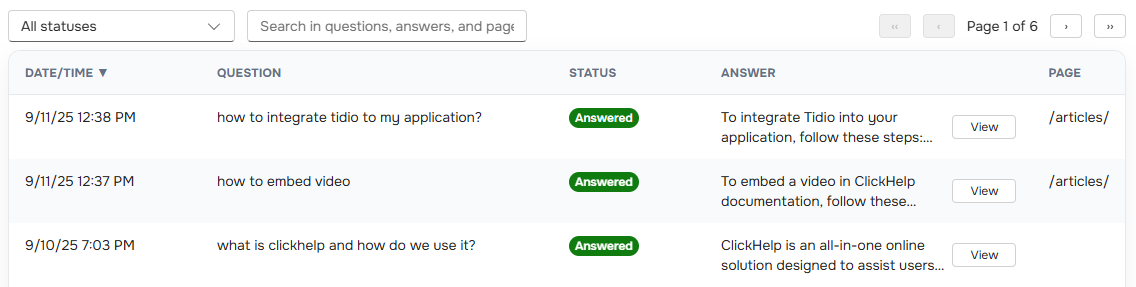
6. Find out what to write next. The AI assistant in your portal answers reader questions with a link to the source page and logs every question, answered or not. Unanswered questions become your list of topics to write or fix.
See the full set of features on the ClickHelp AI page, or start a free trial and connect an AI agent to your own portal.
FAQ
Can AI create accurate software documentation?
Yes, when it works from accurate source material and a person checks the result. Give the model the spec, the approved changes, or a recording of the real UI, and tell it to mark gaps instead of filling them. Accuracy then depends on review: someone follows the steps and confirms the names and values match the product.
How do I generate release notes with AI from approved changes?
Put only the approved, shipped changes into one release version in your tracker, then generate from that version with a tool like Release Notes AI for Jira. Tell the model who reads the notes and what must stay out. Before publishing, check breaking changes, known issues, and any internal wording.
What should I include in a prompt to create user guides with AI?
Include the reader, the task they must complete, prerequisites, the source material (a recording, a spec, or existing topics), the format, and your exact UI labels. Add one rule: use only the source material and mark anything missing. That rule turns hidden guesses into visible gaps.
How do I check AI generated documentation for errors?
Trace every factual statement to the source, then follow the steps yourself in the current version of the product. Check setting names, parameter values, limits, and prerequisites first, since models often get these wrong. Run API examples, compare terms against your glossary, and record who approved the topic.