You’ve been there. The product ships to three different audiences — admins, end users, enterprise clients. Each group needs different docs. So someone on the team does the logical thing: duplicates the project. Three times.
Six months later, a developer fixes a critical workflow and updates one copy. The other two stay wrong. A support ticket comes in. Then another. Someone on the docs team spends a Friday afternoon manually syncing three projects instead of writing something useful.
This isn’t a documentation problem. It’s a process problem, and it compounds quietly until it becomes unmanageable.
Why Documentation Teams End Up With Too Many Copies
When a product serves multiple audiences or formats, teams need different versions of the same content. The instinct is usually to handle this by copying: duplicate the project per audience, maintain manual branches inside a single project, or copy-and-delete pages before each publish run.
Each of these approaches works, until it doesn’t.
| Workaround | What breaks over time |
| Duplicate project per audience or format | Copies drift. Updating shared content means editing in N places, and someone always misses one. |
| Manual branches within a project | Context switching overhead, merge-like conflicts, and logic that only the original author understands. |
| Copy content, delete before publishing | Repeat the process every release. Easy to forget something. High error rate under deadline pressure. |
| Conditional content without central control | Tags scattered across topics with no single place to audit what’s conditional and what’s not. |
The common thread: the more variants you need, the more work grows proportionally. At some point it stops scaling, and the documentation team becomes a bottleneck.
What Output Tags Actually Do
Output Tags are ClickHelp’s single-sourcing mechanism. They let you define which parts of a project — topics, TOC sections, stylesheets, scripts — belong to which published variant. When you publish, ClickHelp resolves those conditions automatically and produces the right output without manual intervention.
One project. Many possible outputs. Changes made once, reflected everywhere they belong.
In practice, it works like this:
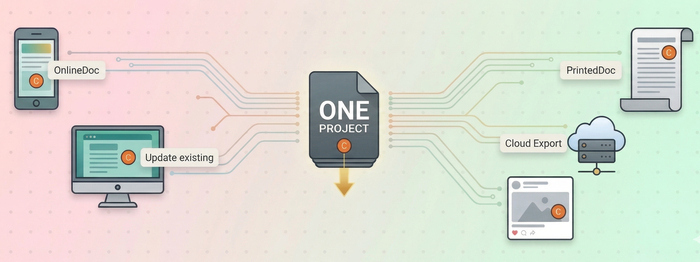
Online documentation and PDF manuals from one source
When you need to maintain both a web version and a print-ready PDF of the same guide, the two formats aren’t interchangeable. Web docs can use video, interactive elements, and navigation blocks that either don’t render in print or actively get in the way. Print versions need different layout logic and often a different stylesheet entirely.
Without a single-sourcing approach, teams end up maintaining two separate content sets that need to stay in sync — a process that breaks down as soon as either version gets an update the other doesn’t receive.
ClickHelp lets you maintain one content source and produce both outputs from it. Content that’s format-specific appears only in the relevant variant; shared content stays in sync automatically. You stop maintaining two projects and start maintaining one.
Role-based documentation without separate projects
When your product is used by different roles — say, administrators who configure the system and end users who operate it — those audiences need different documentation. Admins need setup instructions, user provisioning details, and audit log access. End users don’t need any of that, and seeing it creates confusion.
The typical response is to create separate projects per role. The problem is that the content overlap between those projects is substantial, and keeping them synchronized as the product evolves is a constant drain on the team.
With Output Tags, a single project can produce separate, role-appropriate publications. Topics and TOC sections that are admin-specific simply don’t appear in the end-user output. Add a new feature? Update it once; it shows up correctly in every variant where it belongs.
Different visual styles for different output formats
When the design of a printed manual needs to differ significantly from the web version, or when you produce a white-labeled variant for enterprise clients, managing stylesheets manually before each release is error-prone and time-consuming.
ClickHelp lets you attach different CSS files to different output tags and apply them at publish time. Common styles stay shared; format- or audience-specific styles are applied automatically to the right variant. No manual stylesheet swapping, no risk of publishing the wrong style to the wrong audience.
ClickHelp January 2026 Update: Knowing What You’ve Published
Output Tags solve the content side. The January 2026 update addresses something more operational: once you’re publishing multiple variants, you need to be able to tell them apart at a glance.
The update adds one practical detail to the Projects page: each publication now shows the Output Tags it was built with, so variants are identifiable without opening anything.
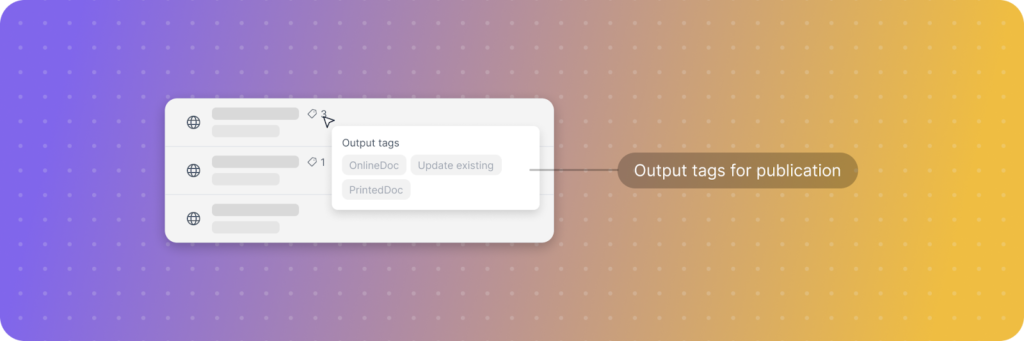
This comes in handy in a few specific situations — auditing which variants of a document are currently live, telling apart publications with similar titles, or getting up to speed on what’s been published without being walked through the project history.
It’s a small addition. It has a disproportionate effect on how long it takes to answer “what exactly did we publish?”
The Trade-offs Worth Knowing
Output Tags aren’t a free lunch. They require upfront investment in tag structure — you need a consistent taxonomy before you start tagging, and the logic needs to be documented somewhere the whole team can reference.
| Manual project duplication | Output Tags | |
| Projects to maintain | One per variant | One |
| Updating shared content | Edit in N places | Edit once |
| Version drift risk | High | Low |
| Publishing a new variant | Copy, edit, publish | Tag, publish |
| Auditing what’s published | Open each publication | See tags on Projects page |
| Onboarding a new writer | “Here are the five projects…” | One project, one tag taxonomy |
The upfront cost is real. For teams with a single output format and a stable, single-audience product, Output Tags may be more structure than the problem requires. For everyone else — multi-audience, multi-format, or multi-version documentation at any meaningful scale — the structure pays for itself quickly.
The Bottom Line
Documentation teams don’t duplicate projects because they want to. They do it because they don’t have a better option, or because the better option seemed too complex to set up under deadline.
Output Tags are the better option. They won’t eliminate the work of maintaining documentation — but they concentrate it, so that one update reaches everywhere it’s supposed to, and one project produces every output the team needs.
For teams managing a large number of variants, ClickHelp January 2026 update makes that easier still — published versions now show their tags directly on the Projects page, so there’s no need to open each one to know what it is.
What to read next:
Good luck with your technical writing!
Author, host and deliver documentation across platforms and devices
FAQ
Can I use Output Tags if my project already has a lot of conditional content set up manually?
Yes. Output Tags work alongside existing conditional content — you don’t need to restructure your project from scratch. The practical approach is to introduce tag logic gradually, starting with new content or the next publish cycle.
Do Output Tags work for versioned documentation, or only for audience-based variants?
Both. Output Tags are format-agnostic — you can use them to separate content by audience (admin vs. user), by delivery format (online vs. PDF), by product version, or any combination of these. The tag taxonomy is yours to define.
What happens to content that has no Output Tag assigned?
Untagged content is included in all publications by default. Only content explicitly tagged for a specific variant gets filtered. This means you can introduce Output Tags incrementally without affecting existing publications.
How many Output Tags can a single publication use?
A publication can be built with multiple tags active simultaneously, which means you can combine conditions — for example, publishing content that’s tagged both admin and pdf at the same time.