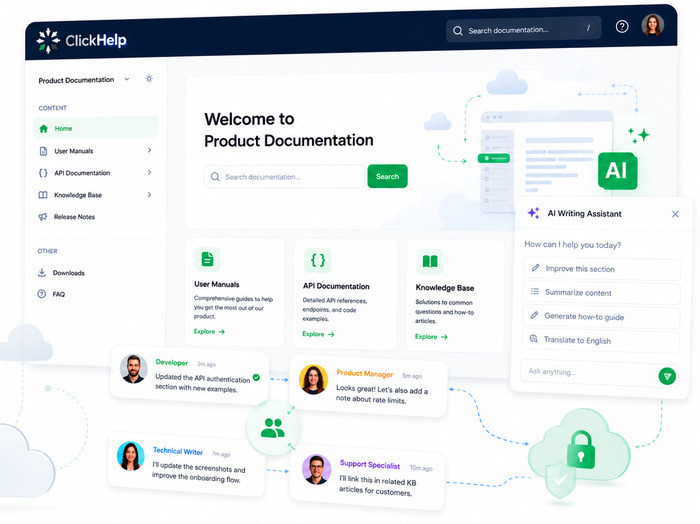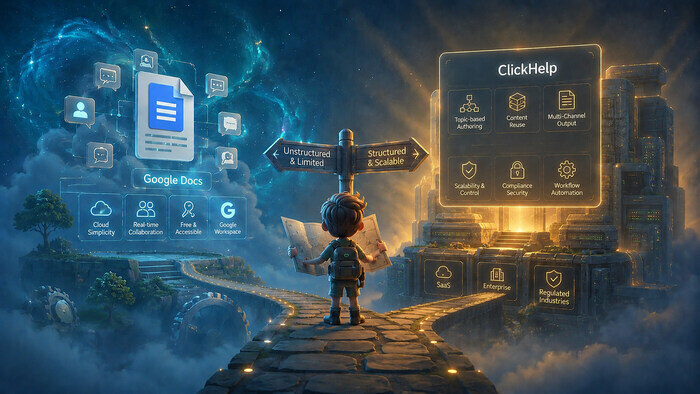
Google Docs has earned its spot as the world’s most popular word processor, with over a billion users worldwide. Its cloud-based simplicity is attractive for beginners and start-ups: draft a quick API guide, share, and collaborate live without software installs. Free tiers and seamless Google Workspace integration make it simple for small teams, individual entrepreneurs, or personal projects.
Yet, for professional technical writing (like software manuals, compliance docs, or multi-product knowledge bases) Google Docs is no longer enough. As document volume, team size, and output channels grow, the unstructured nature of this resource becomes the root of inefficiency. ClickHelp belongs to a category of professional documentation platforms built for teams that have outgrown casual editors.
Why Google Docs Thrives for Simple Tasks But Crumbles at Scale
Docs feels magical for one-page how-tos. It’s great, for instance, when you post a recipe, share it with friends, and ask for comments. Or, when you have a 1-10-pager doc (instruction, article, or specification) and you need to discuss it with partners, colleagues, or co-workers. But scale to 500+ pages across 10 products, five languages, and formats like interactive HTML portals? Problems multiply.
Consider a mid-sized SaaS firm that outgrew Google Docs after hitting 50 docs. The company’s storage usage tripled due to duplicate content copies, reviews and updates took weeks, version mismatches hindered releases, and productivity sagged. This changed after switching to a help authoring tool like ClickHelp.
Here’s a detailed breakdown of the main pain points that companies have when relying fully on Google Docs:
Unstructured “Blob” Content
Everything lives in giant, linear files without native support for topics, variables, or metadata, making content non-semantic and hard to manage at scale:
- Topics: There is no way to break a document into modular, reusable chunks (like “Installation Section” as a standalone topic). Everything stays as one continuous text. You can’t automatically pull out sections as independent pieces (only manually in each specific case by way of copy-pasting).
- Variables: There is no built-in system for dynamic placeholders (like {{product_version}} that auto-fills as “v2.3.1”). Workarounds require add-ons or manual find/replace.
- Metadata: There is no semantic tagging at the content level (like marking a paragraph as “Windows-specific” or “Safety Warning type”). Google Docs doesn’t understand content structure. It’s just styled text.
So, want to reuse a troubleshooting table in three guides? The manual copy-paste available in Google docs invites errors, version drift, and endless maintenance. Repeated content across projects can become a nightmare of inconsistencies and update chases.
Help authoring tools like ClickHelp use topic-based authoring, letting you link (not copy) reusable snippets with conditions (like “show for Windows only”), full metadata support, and dynamic content assembly.
Scalability and Single-Source Deficits
Multi-channel publishing (PDFs, eBooks, websites, Zendesk integrations, mobile apps) requires endless reformatting, exporting, and re-uploading:
- Large files lag and crash
- Project-wide search fails across docs
- Localization means exporting, translating externally, and re-importing. This breeds inconsistencies and delays.
ClickHelp’s single-sourcing capabilities automates this entirely. You can edit only once, publish everywhere with audience variants, language toggles, device-specific layouts, and built-in translation memory interfaces.
Collaboration and Version Control Issues
Simultaneous edits risk overwrites without section locks or role-based permissions, leading to lost work in team environments. In this respect, Google docs becomes the source of the following problems:
- Revision history logs everything but lacks granularity. There is no “revert topic X to version 3.2” or topic-level differentiations.
- Audit trails are non-existent for compliance standards like ISO 9001 or GDPR documentation requirements.
- Screenshots and media get dragged in without auto-resizing, enforced alt-text, versioned libraries, or bulk management.
- Hyperlinks break on exports, tables misalign in PDFs.
ClickHelp counters all these with structured workflow stages (draft/review/approve/publish), visual diffs (color-coded, side-by-side visual comparison of document changes, showing exactly what text/images/tables were added, deleted, or modified between versions), @mentions, automated notifications, and searchable asset managers.
Searchable asset managers in ClickHelp — centralized libraries for all images, screenshots, PDFs, videos, and other non-text files used in documentation, with cross-folder search and usage tracking. Google Docs equivalent? None. Images are dumped inline.
Additional Friction Points in Google Docs
Google Docs adds multiple secondary limitations that reduce efficiency in complex documentation workflows:
- Search and Navigation: In a 200-page doc, Ctrl+F misses context. Table of contents requires manual fixes and doesn’t span projects.
- Templates and Standards: You have to enforce styles manually. As a result, headings drift, acronyms vary, and terminology is inconsistent across teams.
- Analytics and Feedback: There are no built-in user analytics, search logs, or embedded feedback widgets for published portals.
- Security: Lacks enterprise-grade encryption, SSO, or IP restrictions.
- Performance at Scale: 100+ page docs slow to impossible. No handling for 1,000-topic libraries.
How ClickHelp Scales Technical Writing
ClickHelp is a full documentation platform, not just a Docs upgrade. Its key capabilities:
Modular Content and Reuse
- Atomic topics (1-2 screens each) with rich metadata, snippets, and table of contents auto-generation.
- 100% reuse via Snippets inserted through the editor interface, variables, and Output Tags that control content visibility for different versions (e.g., show for Windows only) at publication time.
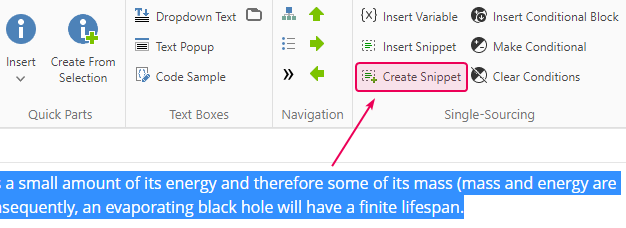
- Dynamic elements that auto-update across outputs.
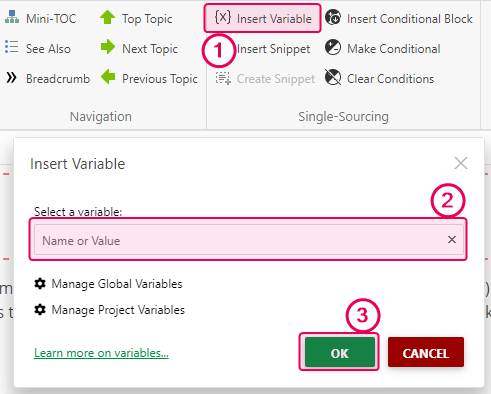
For example, a small team can build an enterprise knowledge base for 1,000+ users this way — importing from Word in hours, adding modular topics, and leveraging reviewer workflows with granular permissions for seamless internal/external access, all managed by mid-level skills without coding.
Multi-Channel Publishing
- Native outputs: Responsive HTML5 portals, print-ready PDFs (with TOC/index/search), Word, CHM, ePub, and API-driven Zendesk/Intercom integrations.
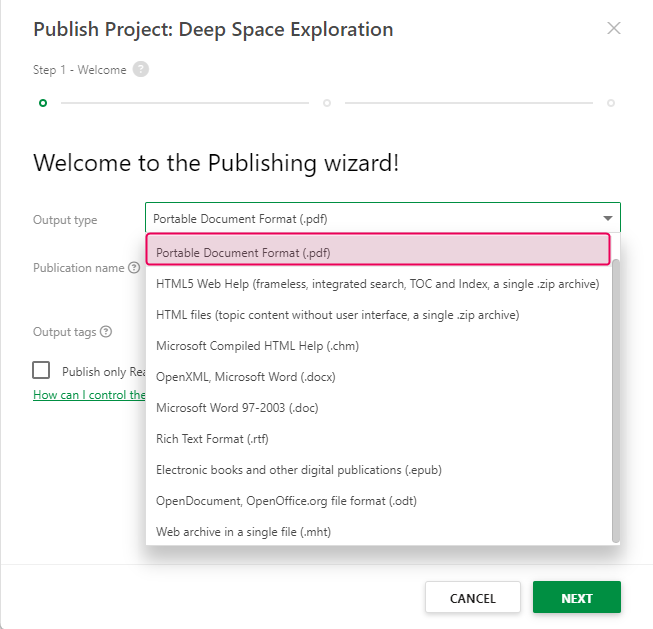
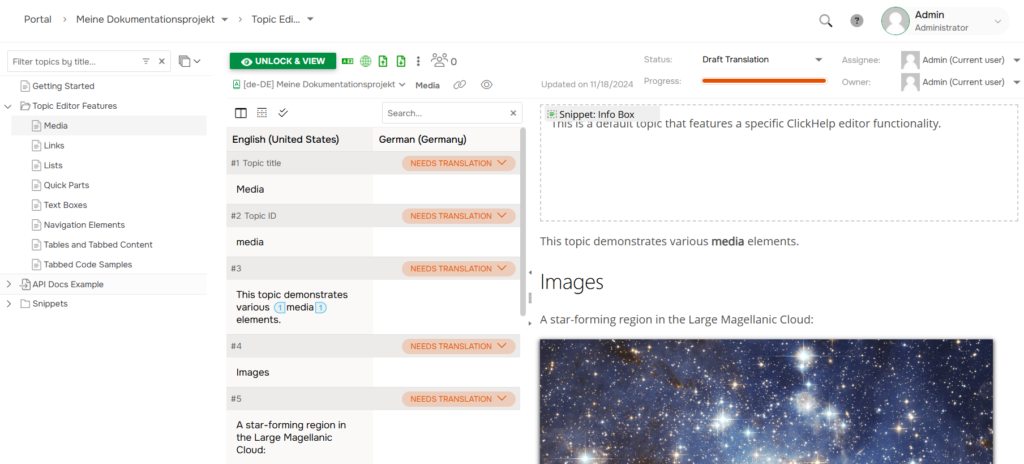
- Built-in Translation Editor with machine translation (Google/Microsoft/DeepL) and XLIFF export/import for integration with CAT tools like MemoQ and SDL Trados.
Team Workflow
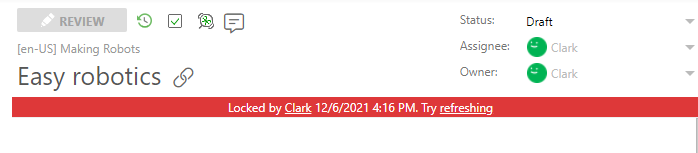
- Role-based access: Writers edit topics, SMEs add inline comments, approvers control workflow statuses (Draft/Under Review/Ready/Published).
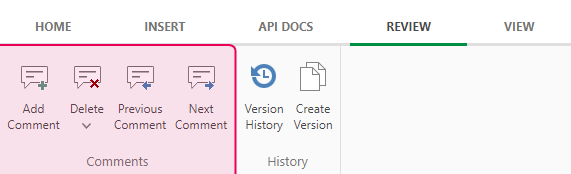
- Visual diffs, threaded @mentions, automated notifications, and conflict-free topic locking.
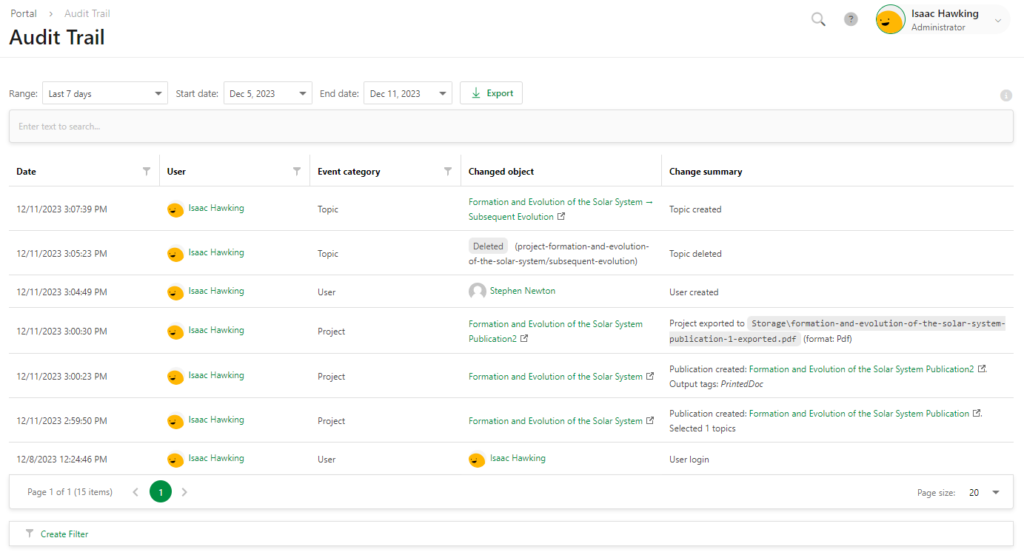
- Full audit trails with exportable reports for compliance, plus integration with Jira/Git for dev-doc sync.
ClickHelp AI
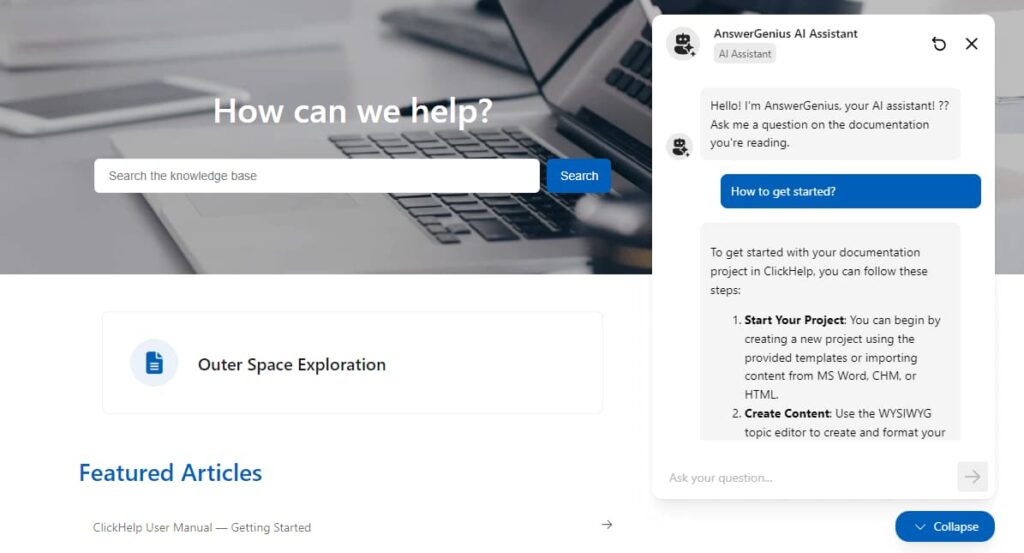
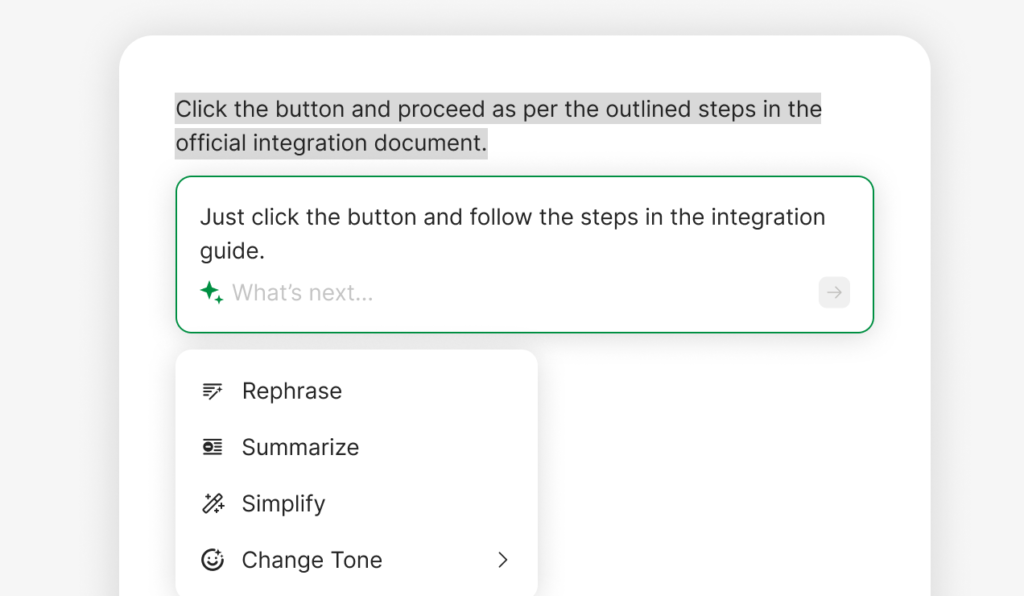
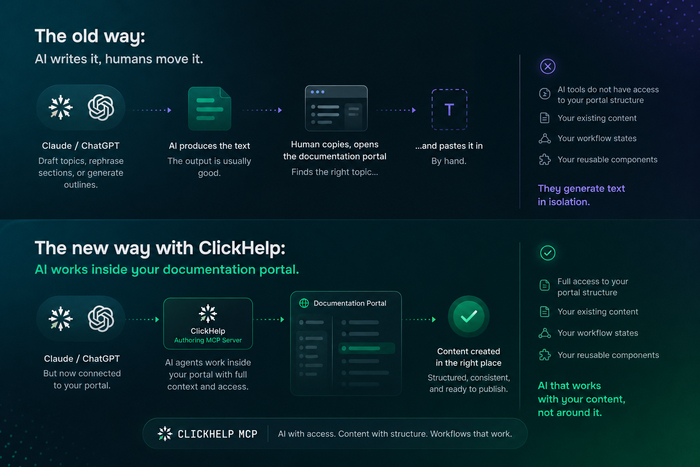
ClickHelp’s AI includes:
- AnswerGenius — an embeddable AI assistant that answers reader questions directly from the documentation portal
- WriteAssist, which helps authors draft and improve content.
- An MCP server (Model Context Protocol) that allows AI agents to connect directly to the documentation portal, search content, and create or update topics through natural language requests.
Security and Compliance
SOC 2 Type II certified, GDPR and CCPA compliant. SSO, IP allowlisting, two-factor authentication, and WCAG 2.2 AA accessible Reader UI. Data hosted in your choice of region: United States, Europe, or Australia.
Head-to-Head Comparison
To see a side-by-side view of how Google Docs and ClickHelp stack up across key technical writing features, check the comparison table below.
| Feature | Google Docs | ClickHelp |
| Content Model | Unstructured linear text | Topic-based content + metadata + reuse |
| Publishing Channels | Manual export (PDF/Word only) | Single-source to 10+ formats (HTML5/PDF/Word/etc.) |
| Collaboration | Real-time edits, no locks | Granular workflows + topic locking |
| Version Control | Full doc history, no granularity | Topic-level diffs + full audits |
| Scalability | Poor for 100+ pages / multi-team | Enterprise-grade (1000s of topics/projects) |
| Compliance | Basic history logs | Audit trails + workflow controls + SOC 2 Type II |
| Analytics | None | User engagement + search tracking + AI assistant logs |
| AI Tooling | None | AnswerGenius, WriteAssist, MCP server |
Migrating from Google Docs to ClickHelp: A Smooth Path
Teams that move from Google Docs to ClickHelp follow a straightforward path:
- Export your Google Doc: Open your Google Doc, go to File > Download > Microsoft Word (.docx). Save the file to your local machine.
- Import into ClickHelp: Navigate to the Projects page in ClickHelp, click Import Project, and select the Google Docs icon. Choose the import format (preferably Microsoft Word) and the project you want to import to.
- Upload the file: Upload the .docx file you exported from Google Docs and specify any import settings as needed.
- Complete the import: Follow the import wizard prompts. Once done, navigate to your project to review the imported content.
- Review manually: Check the imported content for any missing elements or formatting issues that may need adjustment.
Conclusion: Scale Smart
Google Docs suits casual drafting and solo writers. Professional technical writing at team scale (with compliance requirements, multiple languages, or multiple output channels) demands a purpose-built help authoring platform. ClickHelp eliminates the chaos of unstructured documents, unlocks single-source efficiency, and delivers scalable documentation workflows for teams from SaaS startups to enterprise organisations.
Good luck with your technical writing!
Author, host and deliver documentation across platforms and devices
FAQ
Can Google Docs be used for technical documentation?
Yes, Google Docs works well for small projects, short documents, or early-stage teams. However, as documentation grows in size, number of contributors, languages, and publishing formats, its unstructured nature creates scalability, reuse, and version-control challenges.
What is the main limitation of Google Docs for tech writing?
The biggest limitation is unstructured “blob” content. Documents are linear and lack native support for reusable topics, variables, metadata, and conditional content. This makes large-scale maintenance, updates, and multi-product documentation inefficient and error-prone.
How does ClickHelp differ from Google Docs?
ClickHelp provides structured topics, reusable snippets, conditional publishing, granular workflows, topic-level version control, audit trails, and multi-channel publishing (HTML5, PDF, Word, ePub, Zendesk, and more). Google Docs mainly supports real-time editing and basic document history.
What is single-source publishing?
Single-source publishing means you edit content once and publish it automatically to multiple output formats and platforms. ClickHelp supports responsive portals, PDFs, Word, ePub, and integrations — without manual reformatting or duplication.
Is ClickHelp suitable for regulated industries?
Yes. ClickHelp includes audit trails, workflow stages, version tracking, and permission controls that support compliance standards such as ISO, FDA regulations, and GDPR documentation requirements.
Can teams migrate from Google Docs to ClickHelp easily?
Yes. You can export documents from Google Docs as .docx files and import them into ClickHelp using its built-in import tools. After import, content can be modularized into reusable structured topics.
When should a company switch from Google Docs?
A switch makes sense when: documentation exceeds 50+ files, multiple authors collaborate regularly, multi-language support is required, you publish to multiple channels, compliance and audit trails become mandatory
Does ClickHelp support collaboration?
Yes. It provides role-based access, topic locking, visual diffs, threaded comments, automated notifications, and integration with tools like Jira and Git for development synchronization.
Is Google Docs completely unsuitable for documentation?
Not at all. It remains an excellent tool for quick drafting, small teams, and simple documentation tasks. The issue arises when documentation scales beyond basic needs.