
- Clickable checkbox (Windows): turn on the Developer tab (File → Options → Customize Ribbon), then select Developer → Check Box Content Control.
- Printed checklist: Home → Bullets → Define New Bullet → Symbol, and pick an empty box ☐.
- Checklists your team updates every release: see an example in ClickHelp below→
Checkboxes are a powerful feature in Microsoft Word, allowing users to create interactive lists, forms, and checklists. For instance, a technical writer might use checkboxes in a user manual for creating a step-by-step troubleshooting checklist. This would allow the readers to check off each step as they go through the steps toward the resolution of an issue. Such a method enhances clarity and minimizes errors while making the document more interactive and user-friendly.
Today’s article will explain, in a step-by-step manner, how to insert checkboxes into Word documents intended for both digital use and printing, how to add a checkmark symbol, how to make an active checklist using the Developer tab, how to customize checkboxes for usage in printed forms, and provide useful tips to build the most understandable and user-friendly checklist or form.
Why Use a Checkbox in Word
A checkbox in Word makes your document interactive and easier to use. It allows users to mark items as complete, select options, or fill out forms directly within the file. This is particularly useful when tracking business, training, or personal documents is required.
A project manager may insert checkboxes into a Word document to track 15 key tasks related to a product launch, enabling the team to visually check off each item as it is completed. In training, instructors can create interactive quizzes in which checkboxes are provided for multiple-choice answers, making response collection and grading more manageable.
Working without checkboxes in Word makes tracking progress and collecting answers more difficult. Without a clear visual indicator like a checkmark, it’s easier to overlook completed tasks, especially in long documents or ones shared by multiple people.
Who Uses Checkboxes in Microsoft Word
Checkboxes are widely used by professionals, educators, and students.
In medical offices, checkboxes help ensure each step of the intake process is completed—insurance verification, consent forms, emergency contact updates, etc.

In construction, site supervisors use checkboxes for daily safety checklists addressing equipment inspection, hazard identification, and compliance with safety rules.

In education, teachers use checkboxes when assessing students through rubrics with criteria such as grammar, structure, and content.
In IT departments, technicians follow checklists during server maintenance, updates, and audits.

These examples show how checkboxes help users across fields organize, track, and complete critical tasks efficiently.
Types of Checkboxes in Word
Microsoft Word offers two main types of checkboxes:
Interactive (Content Control) Checkboxes
These checkboxes are clickable and can be toggled directly in the document. You can customize the appearance (for example, changing the checkmark symbol) using the Developer tab. The default symbol is an X, but you can change it to a tick or other symbols using fonts like Wingdings or Segoe UI Symbol.
Legacy Checkboxes (Form Fields)
These older controls are also available through the Developer tab and are often used in structured or printed forms. They work well for documents that need protection or for offline usage.
Note: In some versions of Word for Mac, legacy checkboxes may not be available in the same form as on Windows.
Choosing the right type depends on your document’s purpose and the desired interaction.
How to Insert a Checkbox in Word
To insert a checkbox in Word (Windows), follow these steps:
1. Place your cursor where you want the checkbox.
2. Click on the Developer tab in the ribbon. If you don’t see it, go to File > Options > Customize Ribbon and check the Developer box.
3. In the Controls group, click the checkbox icon (a white box with a blue checkmark).

A checkbox will appear at your cursor location. You can copy and paste it to add more checkboxes.
Add a Checkbox with Word Developer Tools
For more advanced forms, use the Developer tools:
1. Enable the Developer tab (if not already visible).
2. Place your cursor where you want the checkbox.
3. Go to Developer > Controls > Legacy Tools > Check Box Form Field.
4. The checkbox will appear and can be copied and pasted as needed.

How to Add a Checkbox in Word on Mac
This clarifies Mac-specific functionality, which varies from Windows.
- Open your document.
- Go to Word > Preferences.
- Select Ribbon & Toolbar and enable the Developer tab.
- To insert a clickable checkbox, go to Developer > Controls and choose Checkbox.
- To insert a checkmark symbol, go to Insert > Symbol and choose a checkmark from Wingdings or Segoe UI Symbol.
Note: Some older Mac versions do not include legacy checkbox tools.
Convert Bullet Points to Checkboxes
You can also convert bullet points into checkboxes:
1. Select your bullet list.
2. Click the Bullets dropdown icon.
3. Choose Define New Bullet.
4. Select Symbol, choose the checkbox or checkmark symbol, and click OK.

Use Cases: When Would You Add a Checkbox in Word
Checkboxes in Word are widely used for practical and interactive documents. Here are some real-life examples and figures to illustrate their value:
- Creating to-do lists and checklists. Teams can track 10–20 tasks with clear visual status through updates with checkmarks.
- Designing forms and surveys. HR departments add 20–30 checkboxes in onboarding forms to streamline data collection.
- Tracking project progress. Construction companies reduce safety mistakes by up to 25% with daily inspection checklists.
- Collecting answers in quizzes or training materials. Teachers create multiple-choice tasks with 10–20 questions using checkboxes for faster grading.
- Making interactive documents for business or education. Universities build interactive orientation checklists to guide students through the process.
By using checkboxes, organizations and individuals can create more efficient, error-free, and interactive documents for a wide range of tasks.
Example: A Release Documentation Checklist
If your checklist lives in a procedure that changes every release, a Word file gets out of date fast. Here’s the same checklist as a published topic in ClickHelp.
Release documentation checklist
☐ Release notes drafted from the tickets in the release
☐ New and changed features documented
☐ Screenshots updated for the new UI
☐ Topics reviewed and set to Ready
☐ Links checked in the new publication
☐ Publication updated with the new version
☐ Support team told what changed
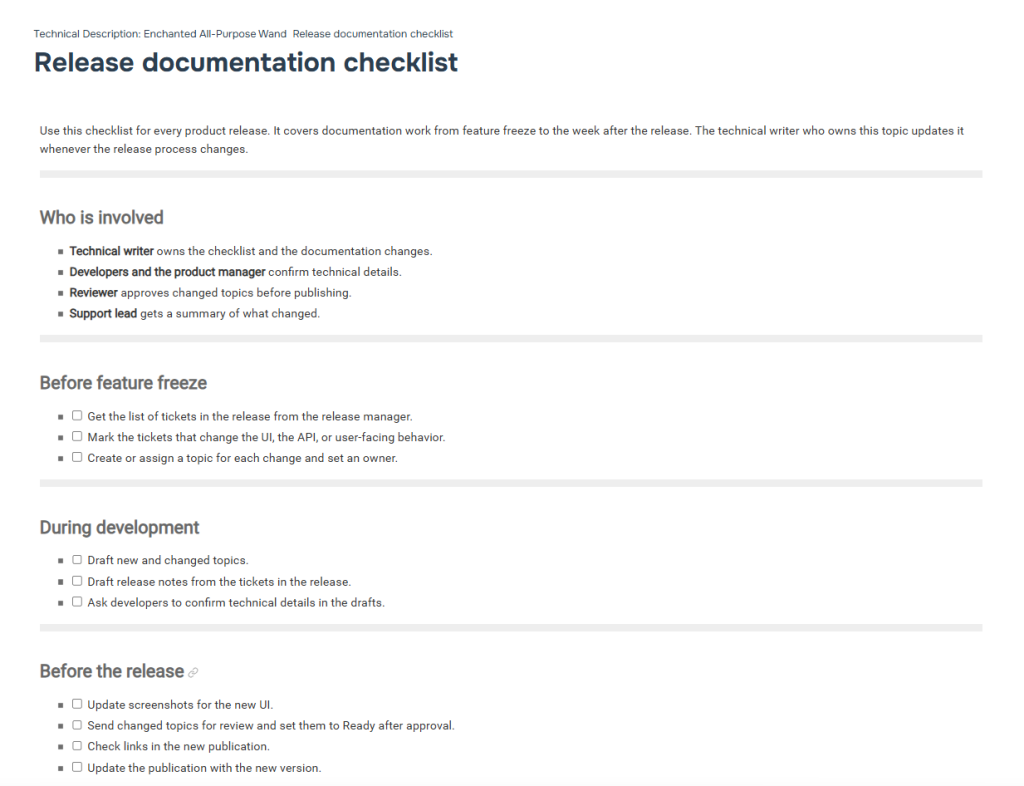
The checklist splits the work into five stages:
- Before feature freeze: get the list of tickets in the release, mark the ones that change the UI, the API, or user-facing behavior, and assign a topic and an owner to each change.
- During development: draft new and changed topics and the release notes, then ask developers to confirm the details.
- Before the release: update screenshots, send changed topics for review and set them to Ready, check links, and update the publication.
- Release day: publish the release notes and make sure search finds the new topics.
- After the release: send support a summary of what changed, collect reader questions, and update the checklist if the process changed.
How the team keeps it current
- One owner per topic. The topic has an assignee and a status: Draft, Under Review, Ready. Everyone sees who’s on it and what’s done.
- Shared steps written once. Steps that repeat across several checklists live in a snippet. Change it once, and every checklist that uses it updates.
- Every change on record. Version history shows who changed what and when, and you can restore an earlier version.
- Same link for readers. After you republish, readers open the same page and see the current version.
To build a checklist like this, add the checkboxes with a line of HTML.
Add a Checkbox with HTML
In ClickHelp, you add a checklist item with an HTML checkbox. Readers can click it in the published topic, like any checkbox in a browser.
<label><input type="checkbox"> Task 1</label>
<label><input type="checkbox" checked> Task 2 (completed)</label>
These checkboxes are clickable right inside the document and behave like regular form controls in a browser.
Add a Checkmark
If you only need a visual checkmark rather than an interactive box, you can insert a Unicode character such as:
✓ Completed
✗ Not completed
You can also style the checkmark using CSS if you want it to match your project’s design.
Styling Checkboxes
You can customize the appearance of your checkboxes with CSS—adjusting size, spacing, color, or replacing the default browser checkmark with a custom symbol. This gives you flexibility to create clean, consistent, and visually appealing checklists inside ClickHelp.

Tickled Tasks: Your Checkbox Mastery Checklist
Congratulations! You’ve just leveled up your Word skills. Here’s a checklist to tick off your newfound powers. Get ready to impress your colleagues.
Checklist:
✅ Enable the Developer Tab: You can now summon the Developer tab like a wizard, unlocking the secret powers of Word’s advanced controls.
✅ Insert Interactive Checkboxes: You know how to add clickable checkboxes that respond to your actions.
✅ Customize Checkbox Appearance: Change the symbol a checked box shows, for example from ☒ to ✓. Select the checkbox, go to Developer → Properties, and next to Checked symbol, click Change.
✅ Convert Bullet Points to Checkboxes: You can style your checkboxes with different symbols, fonts, and colors — even your checkmarks get a makeover.
✅ Use Legacy Checkboxes: You understand how to add old-school form fields for printed documents.
✅ Create and Format Checklists: You’re able to build checklists for any use case — business, HR, education, or IT.
✅ Track Progress and Collect Answers: You can use checkboxes to follow completion status and gather responses.
✅ Copy and Paste Checkboxes: You can duplicate checkboxes quickly to format lists faster.
✅ Review and Test Checklists: You double-check that every checkbox works as intended, avoiding confusion for your readers.
✅ Apply Skills to Real-World Scenarios: You’re ready to use checkboxes across projects, documents, and workflows to stay organized.
By mastering these skills, you can create more effective, interactive, and user-friendly documents in Microsoft Word.
Conclusion
Word gives you two kinds of checkboxes: clickable content controls for documents people fill in on screen, and symbols or legacy form fields for printed forms. Turn on the Developer tab once, and adding either one takes a few clicks.
If your checklist is part of a procedure that changes every release, the hard part isn’t the checkbox. It’s keeping one current version that everyone uses. In a help authoring tool, the checklist is a published page with an owner, and the team updates it in one place.
Good luck with your technical writing!
Author, host and deliver documentation across platforms and devices.
FAQ
Can I make checkboxes clickable in Word?
Yes. To create interactive checkboxes, enable the Developer tab and insert a Content Control Checkbox. These checkboxes can be clicked directly inside the document.
What if I don’t see the Developer tab?
Go to File > Options > Customize Ribbon, check the box next to Developer, and save your changes. The tab will appear in the ribbon.
Can I use checkboxes in Word for Mac?
Yes, but the tools may differ slightly from the Windows version. You can insert interactive checkboxes through Developer > Controls, and add checkmark symbols through Insert > Symbol.
Can I convert bullet points into checkboxes?
Yes. Use Bullets > Define New Bullet > Symbol and choose a checkbox or checkmark symbol to turn a bullet list into a checklist.
Why are my checkboxes not printing correctly?
If using interactive checkboxes, ensure the font supports the selected checkmark symbol. For printed forms, legacy checkboxes or symbol-based checkboxes usually print more consistently.
Can I customize how checkboxes look?
Yes. You can change the checkmark symbol, adjust formatting, or use different fonts like Wingdings and Segoe UI Symbol to achieve the desired appearance.
Can I copy and paste checkboxes to speed up formatting?
Yes. Once you’ve inserted one checkbox, you can duplicate it as many times as needed using copy and paste.