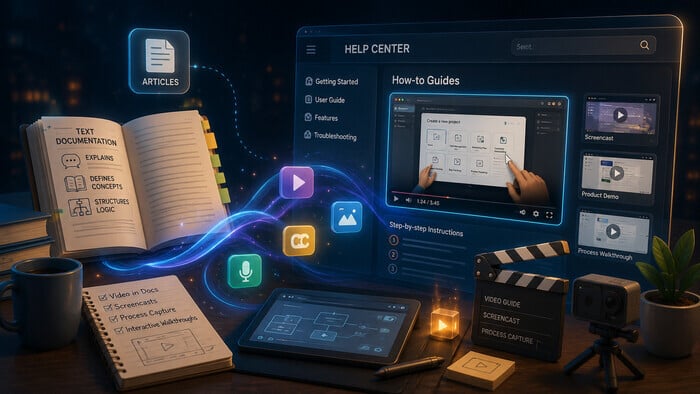
Text documentation is still the backbone of technical communication: it explains what to do, defines concepts, and structures logic. But multimedia documentation, especially video in technical documentation, screencasts for documentation, and automated process capture, answers the question how by showing real‑time interactions with the product. Today’s users expect embedded video guides alongside articles. Modern authoring tools let technical writers include video and interactive walkthroughs in help centers without building them from scratch.
This article explores how to design and maintain multimedia documentation, when to use each format, and how to integrate process capture tools for technical writers into your workflow.
What Is Multimedia Documentation?
In technical writing, multimedia documentation refers to any content that combines text with images, audio, video, or interactive elements to explain a product or process. It aims to reduce cognitive load. Instead of imagining UI states, the user sees them. Instead of decoding abstract commands, they watch someone perform the task.
For technical writers, multimedia documentation is not a replacement for text, but a complementary layer. Text remains essential for glossaries and API references, while video and other media fill the gaps where description alone falls short.
When Text Is Not Enough
Text is highly efficient for reference‑style information and for readers who prefer to scan and search. However, there are clear scenarios where video in technical documentation works better:
- Complex UI flows (wizard‑style setups, multi‑tab configurations, or nested menus).
- Onboarding experiences where users need to see the overall layout and data flow.
- Troubleshooting procedures that involve observing visual feedback (warnings, indicators, or state changes).
Users also learn differently. Some developers prefer reading and will scan documentation once, then rely on code snippets and examples. Others learn by watching, preferring task-oriented video walkthroughs that guide them through a procedure in real time. A good documentation strategy preserves text as the primary reference and enhances it with short videos, screencasts, and interactive guides.
Screencasts for Documentation
A screencast is a recording of your screen while you perform a real task in the product. This technique is especially powerful because it shows UI states, navigation paths, and contextual cues that are hard to convey with screenshots and bullet lists alone.
When Screencasts Are Appropriate
Consider a screencast when:
- The user must follow a sequence of UI actions (e.g., “configure OAuth, enable two‑factor, assign roles”).
- The task is short enough to fit into a focused clip (1–3 minutes is ideal).
- You expect the workflow to stay relatively stable between releases.
Screencasts become less efficient when:
- The UI is in active development and changes frequently (maintenance overhead is high).
- The audience will likely search for specific steps rather than watch the whole flow.
In these cases, automated process capture or text‑heavy guides may be a better fit.
How to Create Screencasts for Software Documentation
Creating effective screencasts follows a simple workflow:
- Plan the task. Write a short script listing the exact steps the user must perform, along with the expected starting and end state of the UI.
- Plan the narration (optional). Choose a human narrator or an AI voice. AI voice platforms such as ElevenLabs and WellSaid Labs simplify consistent, multilingual narration. Focus on explaining why each step matters-not just what to click.
- Prepare the environment. Clean the screen, close unrelated tabs, remove sensitive information, and ensure a consistent screen resolution and recording environment.
- Record the screen. Use a dedicated tool (Loom, Screencast-O-Matic, Camtasia, OBS, Snagit, or Zenious) to capture the screen. Depending on your workflow, you can record with live narration or add voiceover during editing.
- Edit and trim. Remove mistakes, pauses, and false starts. Keep the clip concise and focused on the core task. Add callouts, zooms, highlights, or annotations where they help direct the viewer’s attention.
- Add subtitles and descriptions. Turn on auto‑captions or manually add a transcript so the content is accessible, searchable, and indexable.
Best practice: Follow the “one‑task‑per‑clip” rule. Each screencast should cover a single, well‑defined workflow rather than a broad feature area, making it easier for users to consume.
Automated process capture and AI-powered Video Creation
Traditional screencasts have evolved into AI-assisted content creation workflows that reduce the effort required to create and maintain multimedia documentation.
Today, organizations can choose between automated process capture tools, designed to speed up the creation and maintenance of task documentation and embedded tutorials, and AI-powered video creation platforms that automate the production of professional how-to videos from the same recording.
While both approaches use AI to accelerate content creation, they solve different problems. Automated process capture produces searchable documentation with annotated screenshots, whereas AI-powered video creation automates editing, narration, captions, and documentation generation to create polished multimedia documentation.
Key Automated Process Capture Tools
- Scribe and Tango record your clicks and navigation actions, then generate numbered steps with annotated screenshots and optional editing. Both platforms support sharing by link and exporting to PDF, making them practical for SOPs, internal wikis, and onboarding.
- iorad transforms a single recording into multiple outputs: an interactive tutorial, a video (on supported plans), a step‑by‑step list, and a PDF — all from the same session.
What distinguishes automated process capture from classic screencasts is the output. Instead of a linear video, you receive a navigable, searchable guide that can live alongside your text‑based documentation.
AI-Powered video creation
Platforms such as Zenious transform a single screen recording into a polished video by automating editing, voiceovers, captions, and documentation generation. The result is publication-ready multimedia documentation with minimal manual effort.
What distinguishes AI-powered video creation from automated process capture is the output. Instead of a step-by-step guide, you receive a professional, narrated video accompanied by structured documentation that is easier to update, maintain, and localize.
When to Choose Each Approach
Automated process capture
- Frequent UI changes, internal SOPs, onboarding, and embedded in-app guides where searchable, step-by-step instructions are more valuable than video.
- Teams that need to update individual steps quickly without recreating an entire walkthrough.
AI-Powered Video Creation
- Customer-facing product education where polished, narrated videos create a better learning experience than step-by-step guides.
- Teams producing content at scale across multiple products, releases, or languages, where maintaining separate videos and documentation becomes time-consuming.
In many teams, automated process capture, embedded in-app guides, AI-powered video creation, and full-length training videos complement one another, with each serving a different role in an effective multimedia documentation strategy.
How‑to Video Docs as a Documentation Layer
How-to video docs are a specific category of multimedia documentation: short, task-oriented videos that walk users through a concrete procedure. They can be created using traditional video editing workflows or newer AI-powered video creation platforms, but regardless of how they are produced, they should be embedded directly within the help center or knowledge base where users need them.
Effective task videos share several traits:
- Clear title and context in surrounding text (e.g., “How to connect a third‑party SSO provider”).
- Bite‑sized length — usually 1–3 minutes, sometimes up to 5 for complex flows.
- Closed captions or a transcript for accessibility and search.
These videos work best when placed at the point of need — inside a how‑to topic or a troubleshooting guide — rather than in a separate “video section” that users must hunt for.
The Main Challenge: Maintenance and Search
The biggest downside of traditional video in technical documentation is maintenance. Each minor change to a UI element, workflow, or menu structure can force authors to re-record, re-edit, and re-upload content. Automated process capture simplifies updates for step-by-step documentation by allowing individual steps to be modified, while newer AI-powered video creation platforms reduce the effort required to update existing recordings and their associated documentation.
Another challenge is searchability. Users cannot “Cmd‑F” through a video to jump to a specific setting or
workflow. To compensate, authors should:
- Place the video inside a text‑rich article that already explains the procedure.
- Provide a transcript, structured documentation, or numbered steps alongside the video.
- Use descriptive titles, metadata, and tags so both internal and external search engines can index the content.
The most sustainable strategy is to combine multimedia with structured documentation, allowing users to read, search, or watch the same procedure based on their preference.
Accessibility, SEO, and Discoverability
From an accessibility standpoint, video in technical documentation should include subtitles, transcripts, or equivalent text-based documentation. These help users who are deaf or hard of hearing, users in noisy environments, and those who prefer to read faster than they can watch.
Auto-transcription engines built into platforms (such as YouTube and Loom on paid plans) are a good starting point, while newer AI-powered platforms can also generate transcripts and structured documentation from the same recording. These outputs often require light editing to correct technical terms, product names, and procedural details. From an SEO perspective, transcripts, captions, and structured documentation allow search engines to associate relevant keywords with your videos, improving discoverability both inside and outside your help center.
Relying on video alone is a dead end for search. If a user wants to know “how to change the default theme in the admin panel,” they will type that into a search box. That is why task videos should always live alongside searchable documentation, transcripts, or structured procedures that make the content easy to find.
Multimedia in ClickHelp
ClickHelp supports multimedia documentation out of the box. You can embed screencasts and other video content directly into help topics, either from external hosts (YouTube, Vimeo, Screencast.com) or from ClickHelp’s own File Manager.
Key capabilities include:
- Direct embedding of videos inside specific topics, with alignment options (left, right, or center).
- Reusable media stored in folders, so you can share the same video clip across multiple pages or product guides.
- Integration with multimedia workflows — you can embed screencasts, AI-generated how-to videos, and interactive guides created in platforms such as Scribe, Tango, iorad, or Zenious directly into ClickHelp topics using the Custom HTML element.
ClickHelp also supports search and structure, so that even if the how is shown in video, the what and why remain clearly documented in text.
Practical Recommendations for Technical Writers
To build effective multimedia documentation:
- Audit your existing content and identify UI‑heavy or frequently misunderstood tasks that would benefit from screencasts or embedded task videos, or AI-powered how-to videos.
- Choose the right format for each scenario:
- Long‑form training → full video.
- Short tasks and embedded guidance → screencasts or automated process capture.
- Customer-facing product education or frequently changing content→ AI-powered video creation.
- Follow a production workflow: plan the content, record a clean walkthrough, and use AI where appropriate to streamline editing, narration, captions, translations, and documentation.
- Integrate multimedia into your documentation: place videos inside relevant topics, pair them with searchable documentation, and keep text as the primary reference layer.
The goal is not more video for its own sake, but documentation that matches the right medium to the right moment — giving every type of user a clear, efficient path to the answer they need.
Conclusion
Multimedia documentation fills a gap that text alone cannot close: it shows users how in real time, not just what to do. Today, technical writers have more options than ever-from traditional screencasts and automated process capture to AI-powered video creation that simplifies production and maintenance.
The practical formula is straightforward: use automated process capture for searchable step-by-step guidance, AI-powered video creation for scalable customer education and maintainable multimedia documentation, and full-length training videos where deeper instruction is required. Keep searchable documentation as the primary reference layer, with multimedia enhancing-not replacing-the written content.
Good luck with your technical writing!
Author, host and deliver documentation across platforms and devices
FAQ
Does multimedia documentation replace text-based documentation?
No. Multimedia documentation complements text rather than replacing it. Text remains the primary reference layer because it is searchable, easy to scan, and simple to maintain. Screencasts, automated process capture, and AI-powered how-to videos enhance documentation by demonstrating workflows that are difficult to explain with text alone.
How do I choose between screencasts, automated process capture, and AI-powered video creation?
Choose screencasts for short, task-focused demonstrations that show a user exactly what to do.
Choose automated process capture when searchable, step-by-step documentation or embedded in-app guidance is the priority.
Choose AI-powered how-to video creation when you need professional, customer-facing videos that are easy to update, localize, and maintain while also generating supporting documentation.
What is the difference between screencasts, automated process capture, and AI-powered video creation?
A screencast is a linear recording of a workflow.
Automated process capture records the same interactions but generates a structured, searchable guide with annotated screenshots.
AI-powered video creation transforms a single recording into a polished how-to video while automating editing, narration, captions, and supporting documentation. Each approach serves a different documentation need.
Which tools support automated process capture and AI-powered video creation?
For automated process capture, popular tools include Scribe, Tango, and iorad, each designed to generate structured, step-by-step documentation from recorded interactions.
For AI-powered how-to video creation, platforms such as Zenious automate video production, narration, captions, and documentation from a single recording, making professional multimedia documentation easier to create and maintain.
How do I make multimedia documentation accessible?
Whether you’re using screencasts, AI-powered how-to videos, or full-length training videos, every video should include subtitles and a transcript. Auto-transcription in YouTube or Loom (on paid plans) provides a good starting point, while newer AI-powered platforms can also generate transcripts and structured documentation. Regardless of the workflow, the output should be reviewed for technical terms, product names, and procedural accuracy.
Why can’t I rely on video alone for documentation?
Video is difficult to search. Users cannot scan or “Cmd-F” through a video to find a specific setting or procedure. Pairing videos with transcripts, structured documentation, or numbered steps makes the content easier to search, navigate, and index while giving users the flexibility to read, search, or watch.
How does ClickHelp support multimedia documentation?
ClickHelp lets you embed screencasts, AI-powered how-to videos, and full-length training videos directly into help topics from external hosts such as YouTube, Vimeo, and Screencast.com, or from its own File Manager. Interactive guides created with automated process capture platforms such as Scribe, Tango, or iorad can also be embedded using the Custom HTML element, allowing different forms of multimedia documentation to coexist within the same knowledge base.